Update Images for Rockchip platform-based Boards via USB Cable
1. Introduction
There is no limitation by this method.
2. Preparatory Tools
- Host computer with
Windows - Images
- USB Cable
- (Optional) Debug Cable
3. Install USB Driver
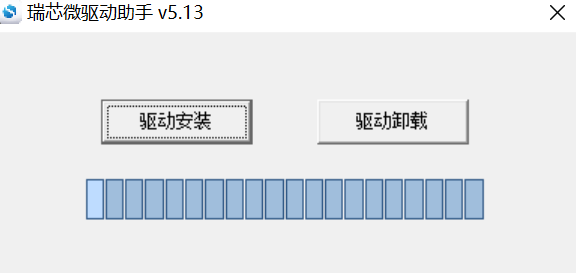
In order for all devices to use the updated driver, first select Driver uninstall(驱动卸载) and then select Driver install(驱动安装).
4. Enter MaskRom Mode
There are two ways to enter MaskRom mode.
4.1 Hardware way into MaskRom Mode
- Disconnect the device from the power supply
- Hold the
MaskRombutton or short the twoMaskromPIN or tweeze the twoMaskromtest points - The device is plugged into the power supply and powered on
- Release the
MaskRombutton or the twoMaskromPIN or test points
4.2 Software way into MaskRom Mode
4.2.1 In Android or Debian
Bootup device to android or debian,then use adb shell or Linux Terminal or Debug console, send the following command:
# reboot loader
Debug Cable is optional.
4.2.2 In Uboot
Open debug console, press ctrl + c key on host computer, then powerup device until get the following information on debug console :
Hit any key to stop autoboot('CTRL+C'): 0
=> <INTERRUPT>
=> rbrom
Debug Cable is required.
5. Update images
5.1 Run RKDevToll
Connect the device and host computer via a USB cable.
Extract RKDevTool_Release, and then run RKDevTool.exe inside.
5.2 Swith to Maskrom Mode
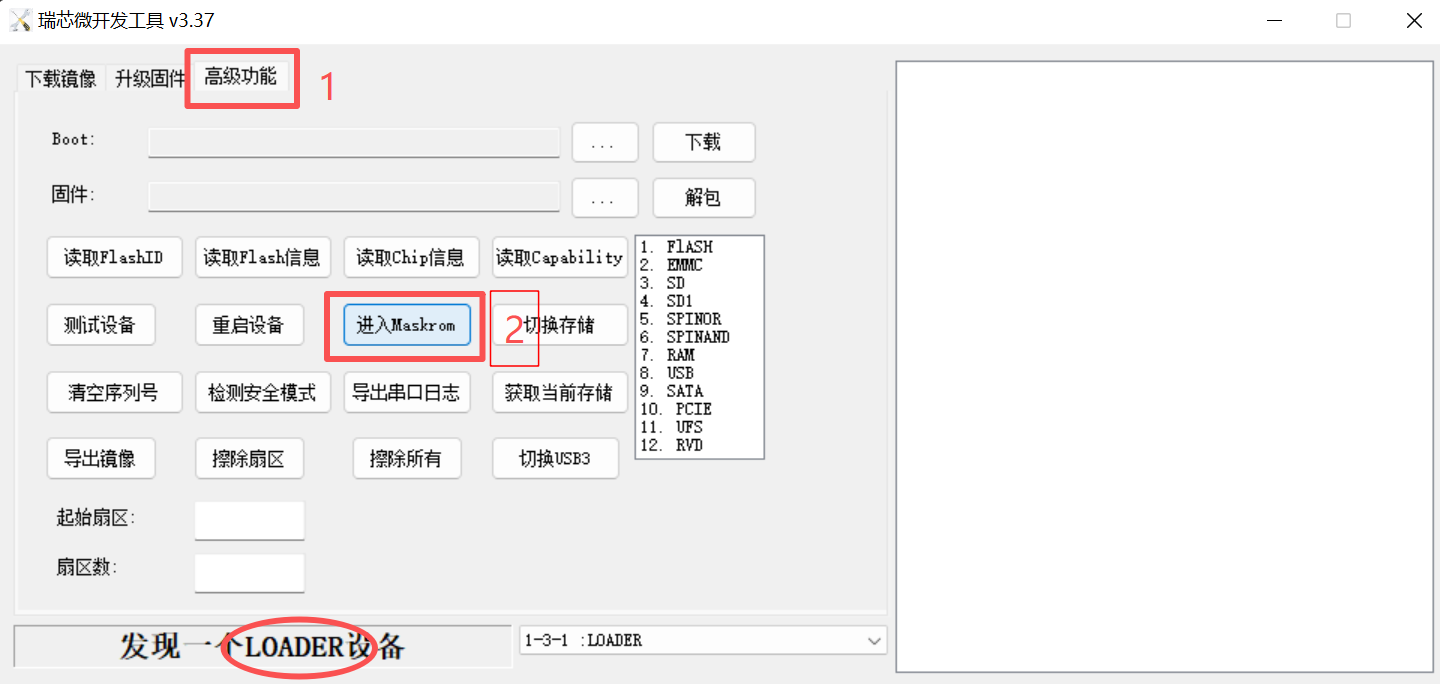
If the device in Loader Mode, switch to Advantech Function(高级功能) page,
then click Enter Maskrom(进入Maskrom) button to enter Maskrom mode.
5.3 Update images
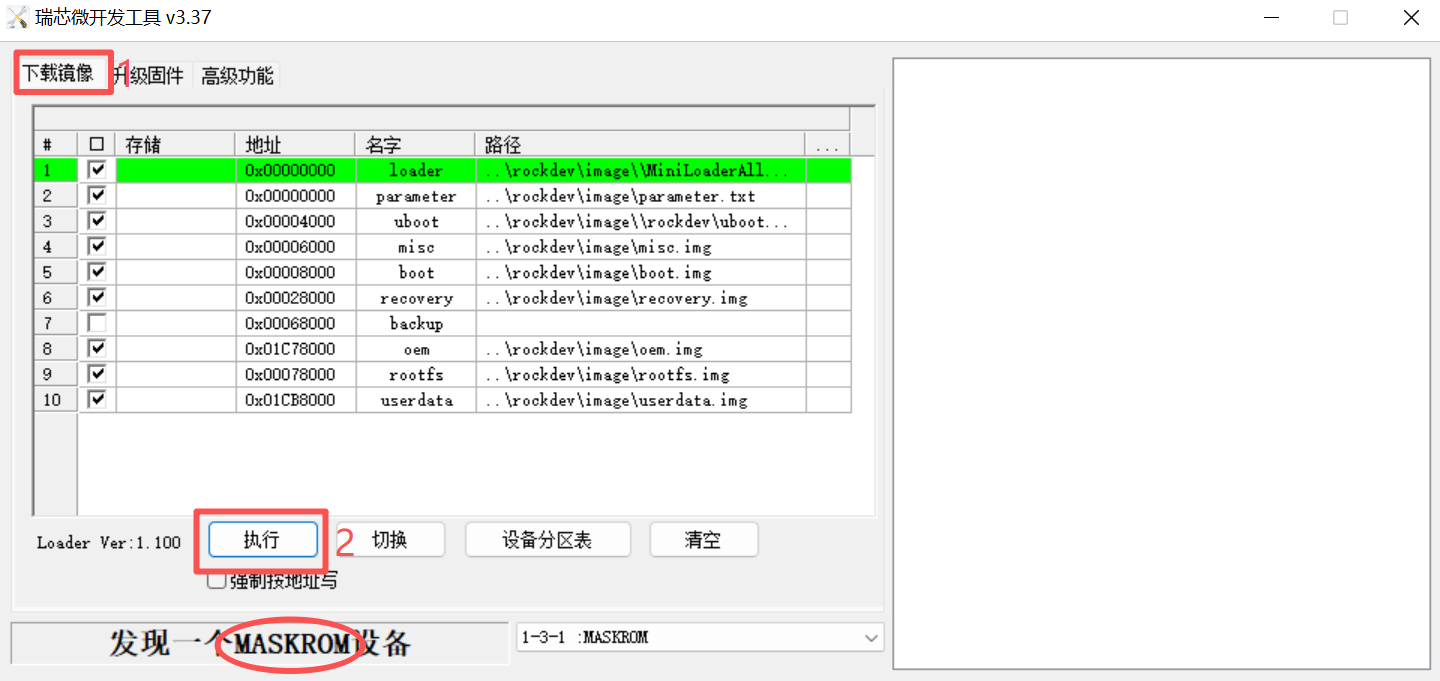
When the device in Maskrom Mode, switch to Download Image(下载镜像) page,
then click Run(执行) button to upgrade the firmware.
☕Have a cup of tea while waiting the process to complete.