Update Images for Rockchip platform-based Boards via SD Card
1. Introduction
- Only update images from the same OS (e.g., Debian upgrade to Debian)
- Using
update.imgto upgrade
2. Preparatory Tools
- Host computer with
Windows - USB Card Reader
- MicroSD Card
- Firmware
- (Optional) Debug Cable
3. Generate update.img
Run mkupdate.bat in rockdev to generate update.img.
☕Have a cup of tea while waiting the process to complete.
rockdev>Afptool -pack ./ Image\update.img
Android Firmware Package Tool v2.29
------ PACKAGE ------
Add file: .\package-file
package-file,Add file: .\package-file done,offset=0x800,size=0x268,userspace=0x1
Add file: .\Image/MiniLoaderAll.bin
bootloader,Add file: .\Image/MiniLoaderAll.bin done,offset=0x1000,size=0xbe1f9,userspace=0x17d
Add file: .\Image/parameter.txt
... ...
Add CRC...
Make firmware OK!
------ OK ------

rockdev>RKImageMaker.exe -RK3576 Image\MiniLoaderAll.bin  Image\update.img update.img -os_type:androidos
********rkImageMaker ver 2.29********
Generating new image, please wait...
Writing head info...
Writing boot file...
Writing firmware...
Generating MD5 data...
MD5 data generated successfully!
New image generated successfully!

rockdev>rem update.img is new format, Image\update.img is old format, so delete older format

rockdev>del  Image\update.img

rockdev>pause
4. Create SD Card
-
Insert microSD card(Suggest using a card with a capacity of 16GB) into USB card reader and then into USB port of host computer
-
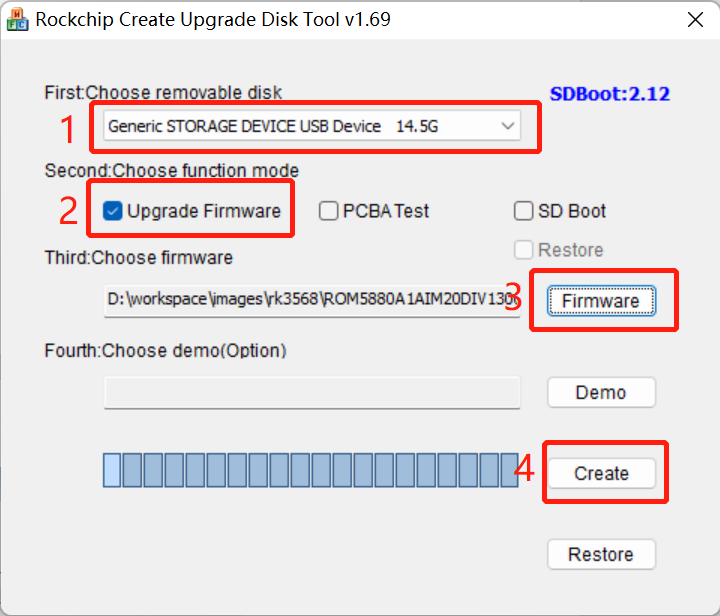
Create SD Card using SDDisk Tool
Extract SDDisk Tool( SDDiskTool_vxxx.zip), RunSD_Firmware_Tool.exe
- Select the correct removable disk device
- Check the “Upgrade Firmware” box
- Choose firmware in 'rockdev/update.img'
- Click button Create to make it
- Wait until it is finshed
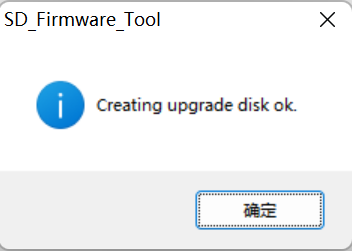
- Safely remove microSD card.
5. Update images
-
Power of the Development Board.
-
Insert the microSD card to the Development Board.
-
Power on the Development Board, it will start upgrading automatically.
☕Have a cup of tea while waiting the process to complete.
Once the upgrade is finished, the messagePlease remove SD CARD!!!, wait for reboot.will appear on both the serial console log and the screen. -
Remove the microSD card and restart the board automatically to complete the whole process of firmware update.