Ubuntu 24.04 x07
Platform Summary
- Ubuntu 24.04 x07 (6.8.0-1057-qcom)
- Kernel 6.8.12
Qualcomm Ubuntu Build System
This document describes how to work with the RISC and Qualcomm Ubuntu Board Support Package (BSP) release.
Introduction
A Makefile-based build system for Qualcomm Ubuntu projects, driven by YAML configuration for flexibility and automation.
| Feature | Description |
|---|---|
| Containerized | Uses Docker (advrisc/u24.04-qcsubv1) to ensure a consistent and reproducible build environment. |
| YAML-based Configuration | Machine and build parameters managed in configs/defaults.yaml. |
| Automatic Logging | Build output automatically saved to timestamped files in logs/. Use NOLOG=1 to disable. |
| Debug / Release Mode | Selectable via BUILD_MODE=DEBUG|RELEASE. |
| Fast Module Debugging | Compile specific kernel subdirectories or out-of-tree modules via make modules M=.... |
Host machine requirements
- Ubuntu 22.04 or Ubuntu 24.04
- Intel Core-i7 Processor (>= 8 cores)
- 16+ GB RAM
- 350 GB free disk space (more is recommended and SSD is suggested for better performance)
- Docker version 29.1.4 or later (Docker Installation Guide for more details)
Host dependencies
Install helper tools on the host when you encounter Exec format error or similar issues:
sudo apt-get update
sudo apt-get install qemu-user-static repo
Download Latest BSP version
mkdir $HOME/<workspace>
cd $HOME/<workspace>
repo init -u https://dev.azure.com/AIM-Linux/risc_qcs_ubuntu/_git/manifest -b main -m <manifest_file_name>
repo sync -c -j$(nproc)
Example:
repo init -u https://dev.azure.com/AIM-Linux/risc_qcs_ubuntu/_git/manifest -b main -m aom2721a1_ubuntu24.04-x07_v0.0.0_kernel-6.8.12_qcs6490.xml
Pull docker images
sudo docker pull advrisc/u24.04-qcsubv1:latest
Run docker example
(Option 1) Use default user in container:
sudo docker run -it --privileged -v=<workspace>:/home/adv/BSP -v=/dev:/dev --name=build_qcs_ubuntu advrisc/u24.04-qcsubv1
(Option 2) Dynamically create a host user in container (Recommend):
sudo docker run -it \
  --env UNAME=$USER \
  --env HOST_UID=$(id -u) \
  --env HOST_GID=$(id -g) \
  --privileged \
  --volume=$HOME/<workspace>:/home/$USER/<workspace> \
  --volume=/dev:/dev \
  --name=build_qcs_ubuntu \
  advrisc/u24.04-qcsubv1
Build Instructions
1. Select machine
Select the target machine before building (required first step). Default build mode is RELEASE:
make <machine>
To build in DEBUG mode:
make <machine> BUILD_MODE=DEBUG
Example:
make afea503a1
make afea503a1 BUILD_MODE=DEBUG
2. Build
Build all components:
make all
Generate a flashable image:
make install
Output images:
<workspace>/images/<machine>/qcom-ubuntu-image
(Optional) [Host machine] Build individual components:
make kernel
make dtb
make modules M=<path_to_subdir_or_ext_module>
make rootfs
make install
For
make modules,.kofiles are automatically collected intoimages/modules/.
(Optional) [Target machine] Replace existing modules:
# Get module path
sudo modinfo <module_name> | grep filename
# Replace module
sudo rm -f <existing_module_path>
sudo cp <module_name>.ko <existing_module_path>
# Update module dependencies
sudo depmod -a
# Update initramfs
sudo update-initramfs -u
# Reboot
sudo reboot
3. Clean
Remove kernel build artifacts:
make clean
4. Other Commands
Show help and supported machines
make
Show current configuration:
make printenv
Edit kernel config:
make menuconfig
Mount/unmount Ubuntu root filesystem (requires .img file in images/):
make mount
make unmount
5. Old version build scripts
The
scriptsfolder should existsbuild_release.shand the git branch is not inmain
scripts/build_release.sh                        # Show help

scripts/build_release.sh [OPTIONS] [UBUNTU_MACHINE] [DISTRO_IMAGE]

OPTIONS:
                -help                           | Displays this help
                -kernel                         | Build ubuntu kernel with deb file
                -dts                            | Build ubuntu device tree
                -rootfs                         | Build ubuntu rootfs
                -ubuntu                         | Build ubuntu and generate image
                -image                          | Generate image

UBUNTU_MACHINE:
                -afea503a1                      | Build afea503a1 image
                -air055a1                       | Build air055a1 image
                -aom2721a1                      | Build aom2721a1 image
                -asrd501a1                      | Build asrd501a1 image
                -mio5355a1                      | Build mio5355a1 image

DISTRO_IMAGE:
                -debug                          | Build debug image
                -release                        | Build release image
Example
scripts/build_release.sh -ubuntu -afea503a1 -debug
Directory Structure
manifest/: Repo manifest files for project synchronization.boot-firmware/: Storage partition tables and NHLOS images for each project.configs/: YAML configuration files for machines and build parameters.download/: Reference board boot firmware, Ubuntu root filesystem, and rootfs partition table.noble/: Ubuntu kernel source code.scripts/: Build scripts and Makefiles.tools/: Custom tools such as out-of-tree kernel modules, pre-install Debian packages, and other utilities.logs/: Timestamped build logs.images/: Build output directory.
Support List for Latest Manifest
| Platform | Device | Manifest XML |
|---|---|---|
| QCS6490 | AOM-2721 | aom2721a1_ubuntu24.04-x07_v0.0.0_kernel-6.8.12_qcs6490.xml |
| QCS6490 | ASR-D501 | asrd501a1_ubuntu24.04-x07_v0.0.0_kernel-6.8.12_qcs6490.xml |
| QCS6490 | DS-011 | ds011a1_ubuntu24.04-x07_v0.0.0_kernel-6.8.12_qcs6490.xml |
| QCS6490 | MIO5355 | mio5355a1_ubuntu24.04-x07_v0.0.0_kernel-6.8.12_qcs6490.xml |
| IQ9075 | AFE-A503 | afea503a1_ubuntu24.04-x07_v0.0.0_kernel-6.8.12_iq9075.xml |
| IQ9075 | AIR-055 | air055a1_ubuntu24.04-x07_v0.0.0_kernel-6.8.12_iq9075.xml |
Download and build specific BSP version
Please use BSP Launcher
Flash local image
Using Qualcomm Device Loader (QDL) tool to flash software images to the device.
Windws x86 QDL User and Installation Guide
Overview
Qualcomm Device Loader (QDL ) is a software tool that communicates with Qualcomm USB devices to upload a flash loader and flash software images.
Installation Guide
-
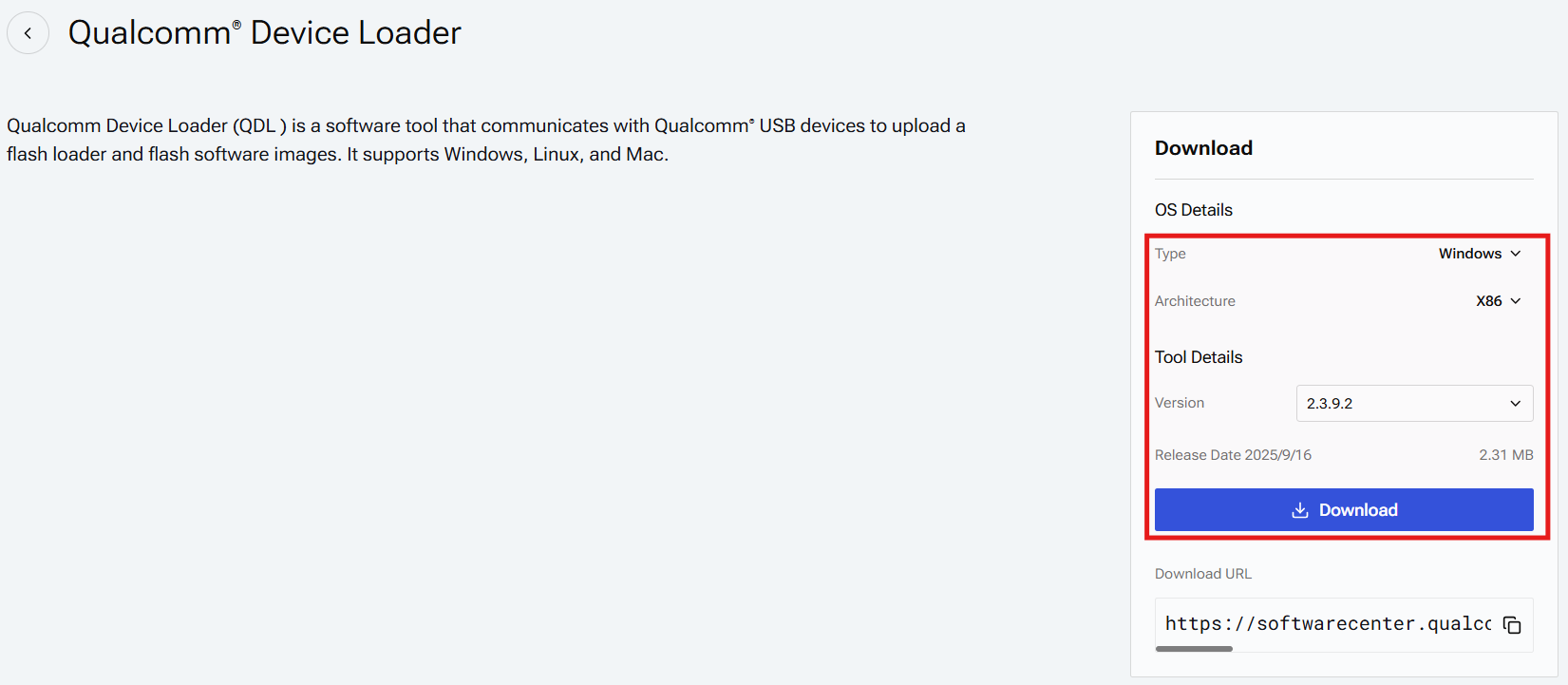
Download Qualcomm Device Loader from below link https://softwarecenter.qualcomm.com/catalog/item/Qualcomm_Device_Loader
-
According your host mach to select OS type and which version you want
-
Unzip download file in any path
-
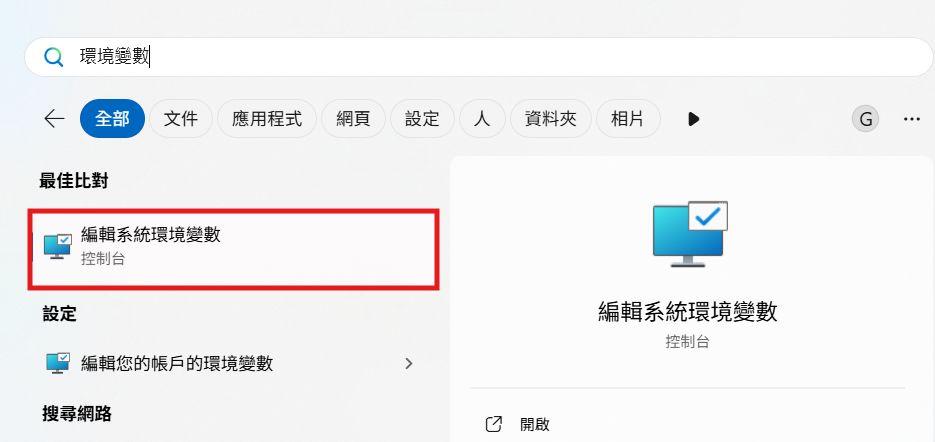
Serach Edit the system environment variables (環境變數) to open Advanced system settings Also you can open Settings app → System → About → Advanced system settings → Advanced
-
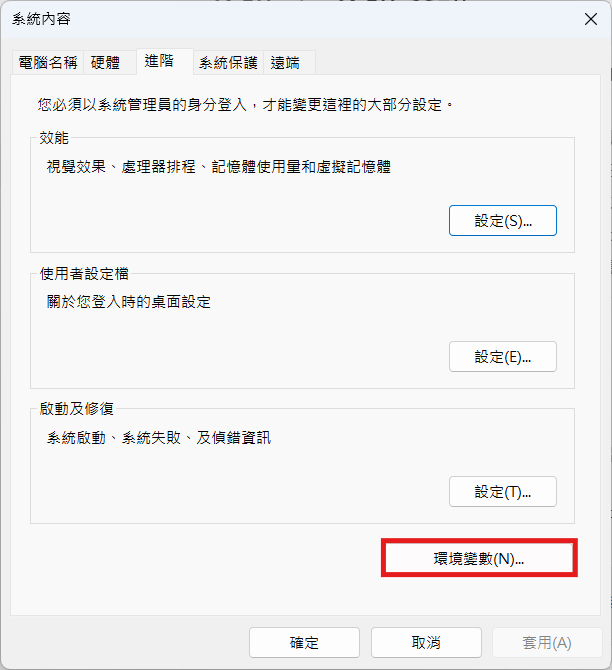
Select Environment Variables (環境變數)
-
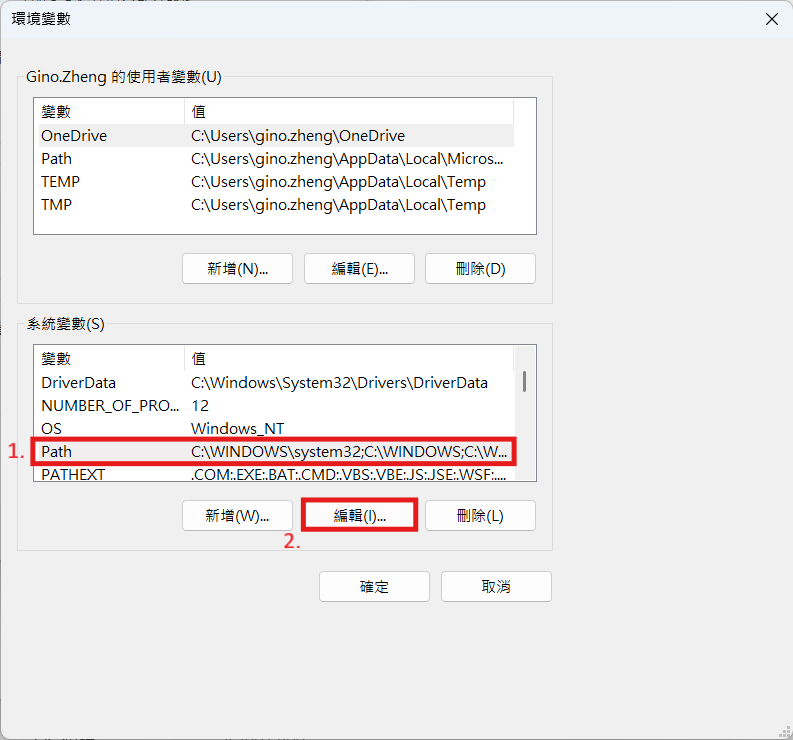
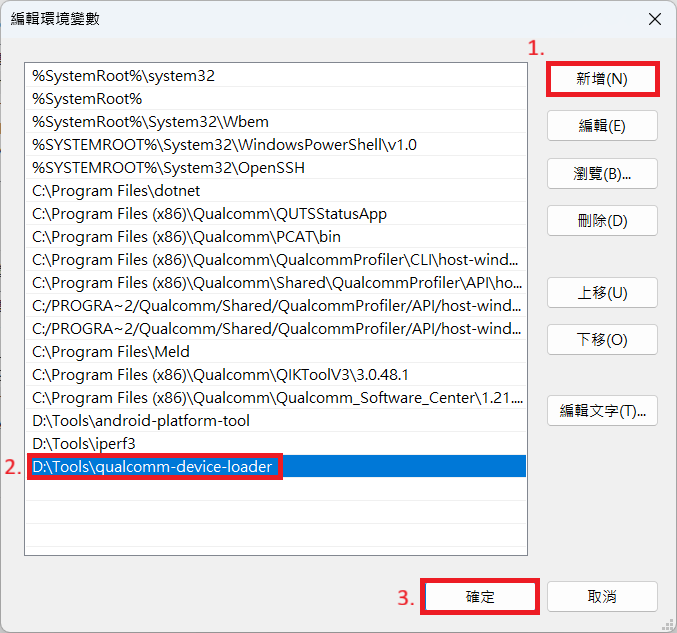
Select Path then edit (編輯)
-
Select New (新增) and type the Qualcomm Device Loader path then select OK (確定)
-
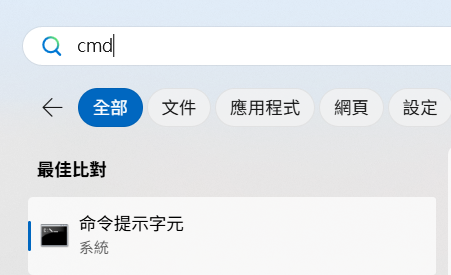
Search cmd to open Windows Terminal
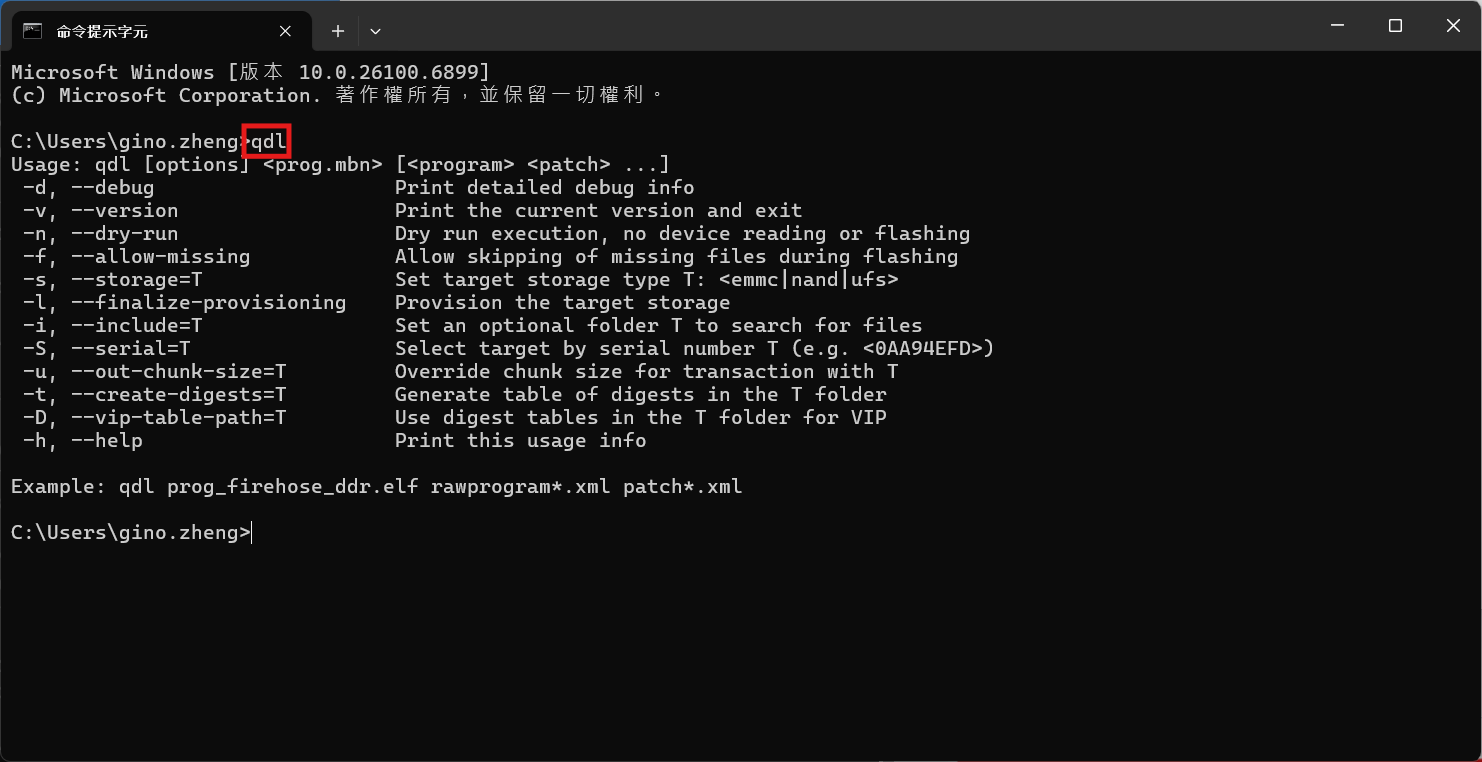
- Type qdl and you can see the QDL usage now!!
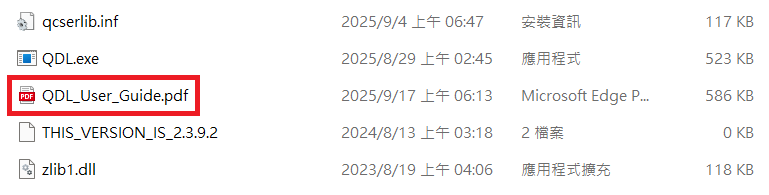
You can see the QDL_User_Guide.pdf for more details
winUSB Installation Guide
- Let board enter EDL mode
Please check Device Guides for more details
-
Connect the EDL USB port to PC
-
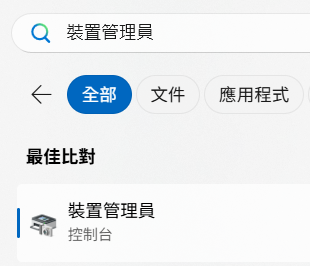
Search device manager (裝置管理員)
-
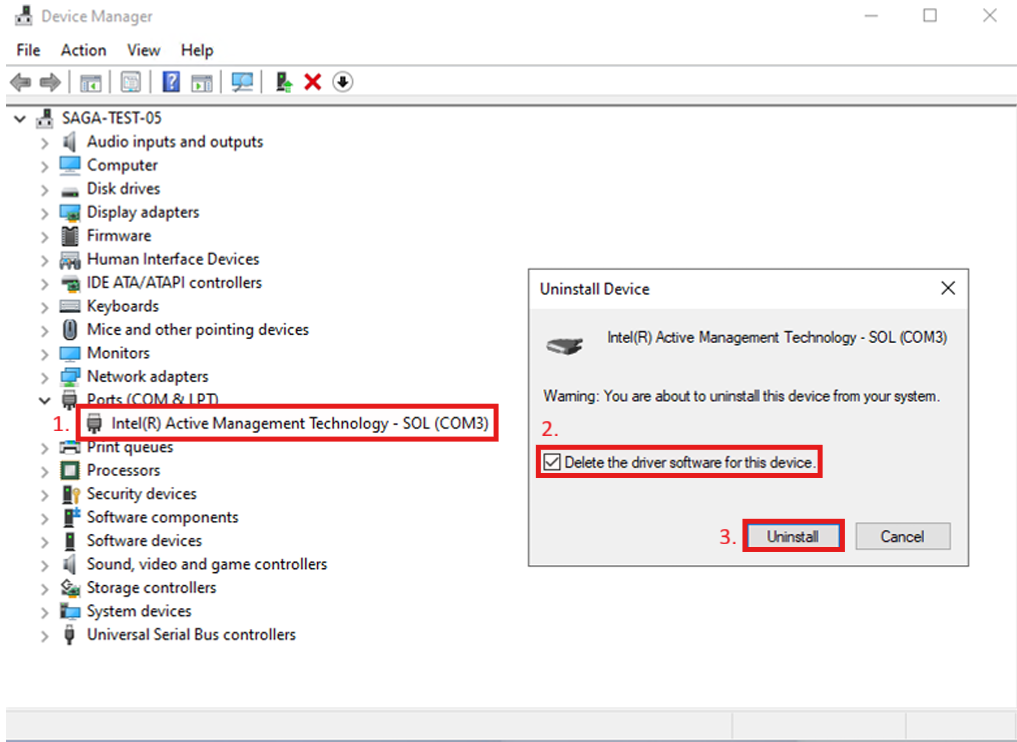
Uninstall other drivers for the device
-
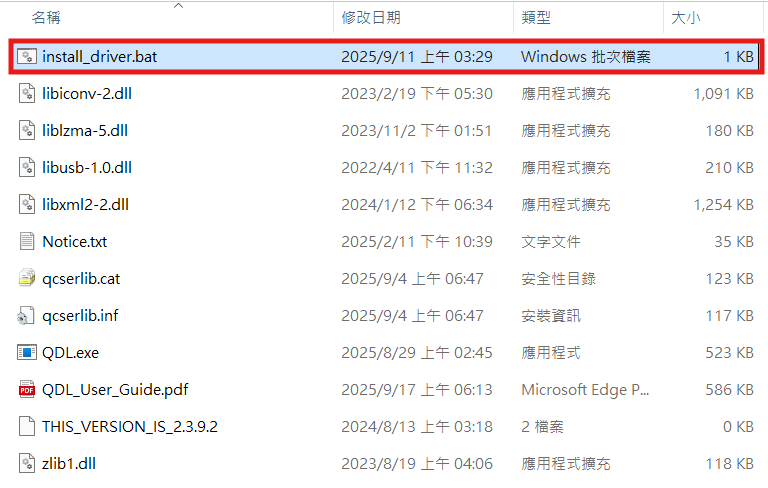
Open install_driver.bat in QDL path to install winUSB driver
-
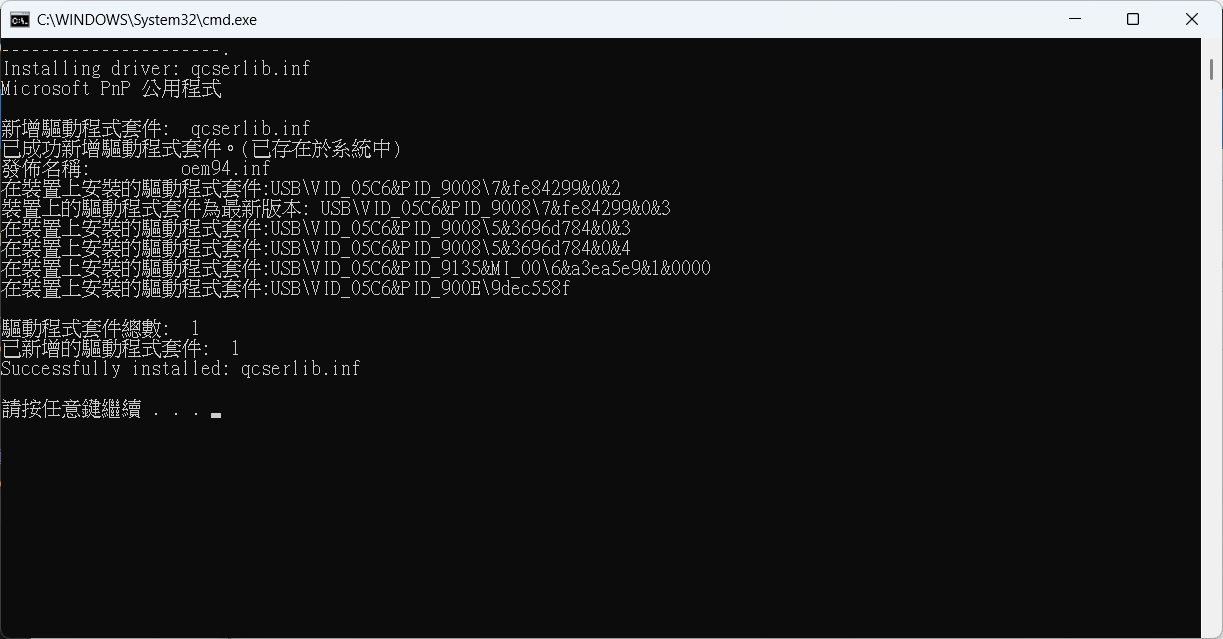
Press any key to close window
Linux x86 QDL User and Installation Guide
Overview
Qualcomm Device Loader (QDL ) is a software tool that communicates with Qualcomm USB devices to upload a flash loader and flash software images.
Installation Guide
-
Add Qualcomm USB udev rules (one-time prerequisite)
Add below line in
/etc/udev/rules.d/51-qcom-usb.rulesSUBSYSTEMS=="usb", ATTRS{idVendor}=="05c6", ATTRS{idProduct}=="9008", MODE="0666", GROUP="plugdev" -
Restart
udevservicesudo systemctl restart udev -
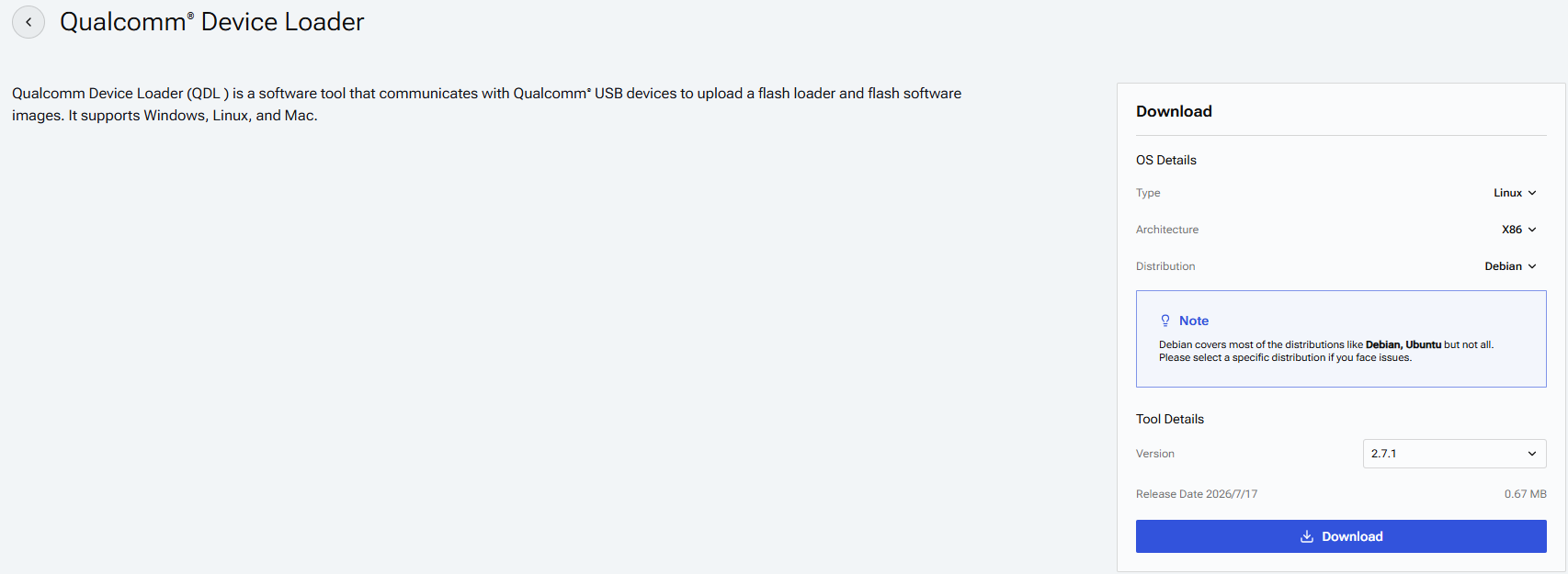
Download Qualcomm Device Loader from below link https://softwarecenter.qualcomm.com/catalog/item/Qualcomm_Device_Loader
-
According your host mach to select OS type and which version you want
-
Unzip download file in any pah
unzip QDL_2.7.1_Linux_x64.zip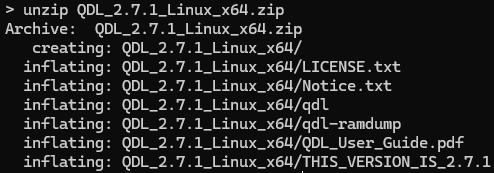
-
Change the qdl tools permission
sudo chmod 755 QDL_2.7.1_Linux_x64/qdl* -
Install dependency packages
sudo apt-get install libxml2 libzip-dev -
Type qdl and you can see the QDL usage now!!
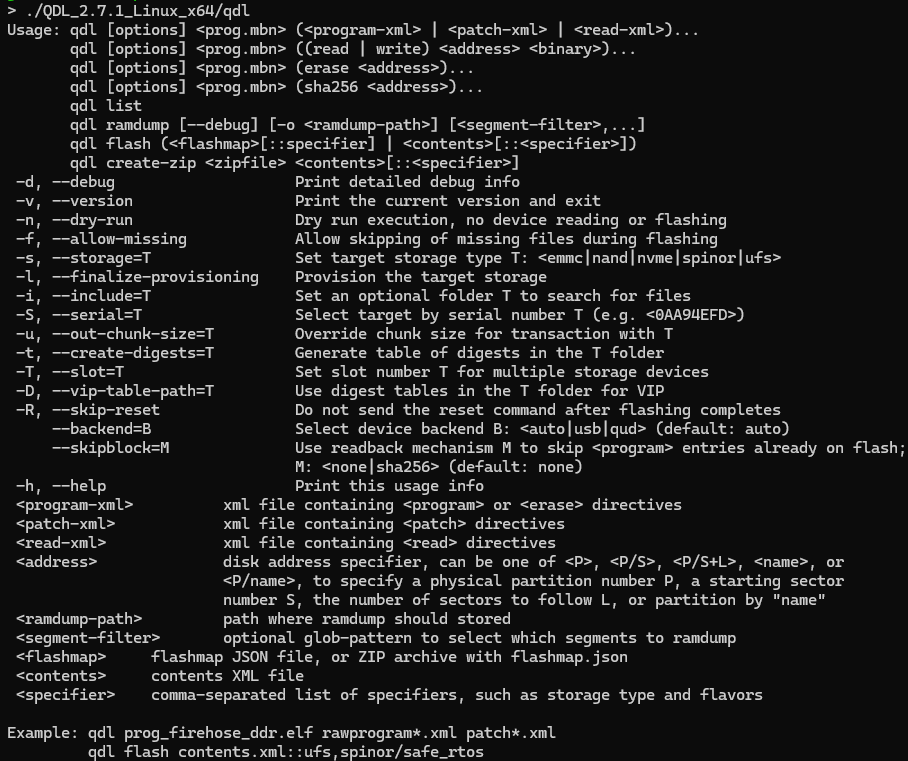
You can see the QDL_User_Guide.pdf for more details
-
Move qdl tools to global path
sudo mv QDL_2.7.1_Linux_x64/qdl* /usr/local/bin/
Let device in EDL mode and connect the EDL USB Port to HOST.
Please check Device Guides for more details
Open terminal and enter the image folder
cd <workspace>/images/<machine>/qcom-ubuntu-image
Choosing the platform to flashing image.
QCS6490
QCS6490 Platform Flashing Guide
Flash provision (Once only)
- Erase UFS
qdl prog_firehose_ddr.elf provision_ufs31.xml

Flash root filesystem
qdl prog_firehose_ddr.elf rawprogram*.xml patch*.xml
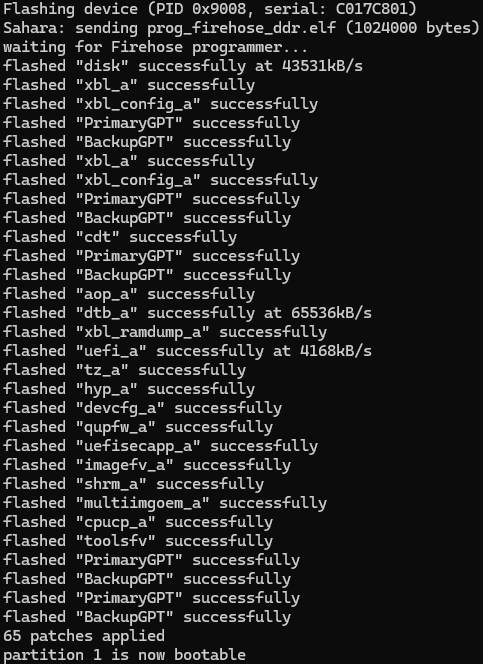
IQ9075
IQ9075 Platform Flashing Guide
Flash provision (Once only)
- Erase UFS
qdl prog_firehose_ddr.elf provision_1_2.xml

Flash Safety Island
- Enter sail_nor folder
cd sail_nor
- Flash sail_nor
qdl --storage spinor prog_firehose_ddr.elf rawprogram0.xml patch0.xml

- Back to the root path
cd ..
Flash root filesystem
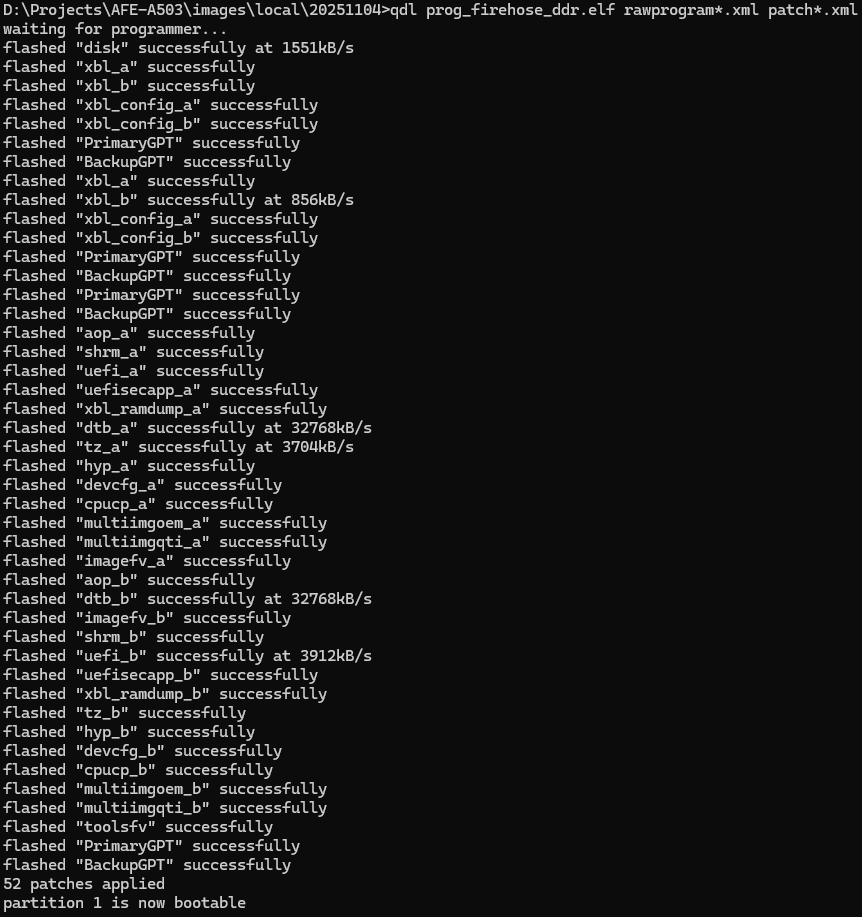
qdl prog_firehose_ddr.elf rawprogram*.xml patch*.xml
Switch device to Normal Mode and power on device
Device Guides
QCS6490
- AOM-2721
- ASR-D501
- MIO-5355
- DS-011
| SW1 | 1 | 2 |
|---|---|---|
| UFS | ON | ON |
| eMMC | OFF | ON |
| SW2 | 1 | 2 |
|---|---|---|
| ON | USB EDL Mode | AT |
| OFF | Normal Mode | ATX |
| SW2 | 1 | 2 |
|---|---|---|
| ON | USB EDL Mode | AT |
| OFF | Normal Mode | ATX |
| SW1 | 1 | 2 | 3 | 4 |
|---|---|---|---|---|
| ON | USB EDL Mode | AT | UFS | LVDS |
| OFF | Normal Mode | ATX | eMMC | eDP |
| SW1 | 1 | 2 |
|---|---|---|
| UFS | ON | ON |
| eMMC | OFF | ON |
| SW7 | LEFT | Right |
|---|---|---|
| USB EDL Mode | Normal Mode |
IQ9075
- AFE-A503
- AIR-055
| SW3 | 1 | 2 |
|---|---|---|
| USB EDL Mode | ON | ON |
| Normal Mode | OFF | OFF |
| SW4 | 1 |
|---|---|
| ON | AT |
| OFF | ATX |
| SW1 | 1 |
|---|---|
| ON | AT |
| OFF | ATX |
| SW3 | 1 | 2 |
|---|---|---|
| USB EDL Mode | ON | ON |
| Normal Mode | OFF | OFF |