MIO-5355 Yocto User Guide
Product Introduction
Product Features
- Qualcomm® QCS6490/QCS5430 on 3.5" SBC, support extend operating temperature -20~70°C
- Powerful but Low Power with 8x Kryo 670 CPU from 1.9 up to 2.7 GHz + Adreno GPU 643 + up to 12.3 TOPs iNPU
- Rugged Design with On-board 8GB LPDDR5 and 128GB UFS or eMMC
- Flexible Displays with HDMI and LVDS or eDP & Rich I/Os: 2x GbE, 6x USB, 4x COM, 2x MIPI-CSI, 1x Audio
- 3x M.2 Expansions: M.2 E-Key 2230 for WiFi/BT, M.2 B-Key 3052 for 4G/LTE, M.2 B-Key 2280 for NVMe Storage
- Various OS Support: Yocto, Windows on Arm and Ubuntu
Product Official Website Link
Hardware Interface Introduction
Layout
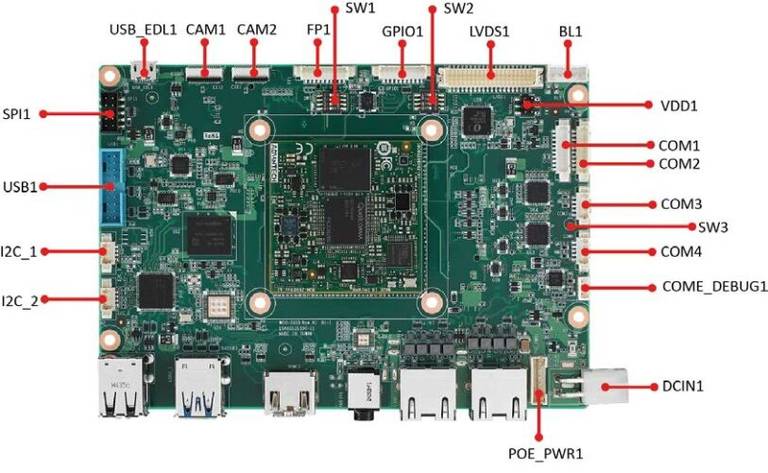
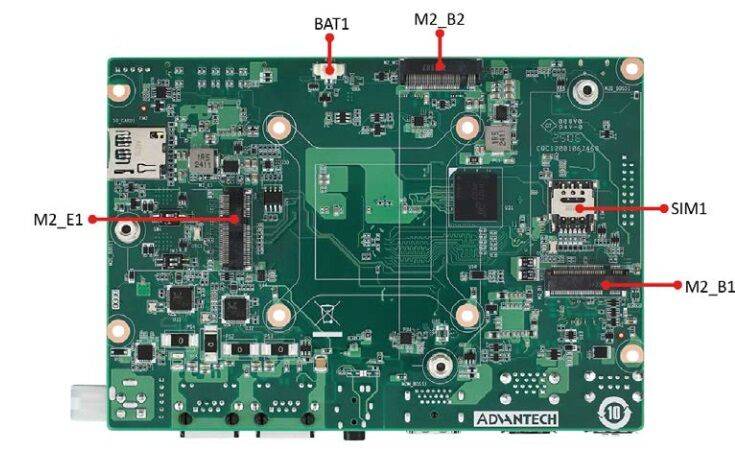
Switch / Jumper Settings
SW1
- SW1 ( 1-on ) : USB EDL Mode (Forced Recovery)
- SW1 ( 1-off ) : Normal Boot
- SW1 ( 2-on ) : AT Mode
- SW1 ( 2-off ) : ATX Mode
- SW1 ( 3-on ) : UFS
- SW1 ( 3-off ) : EMMC
- SW1 ( 4-on ) : LVDS (DVT Support)
- SW1 ( 4-off ) : eDP (DVT Support)
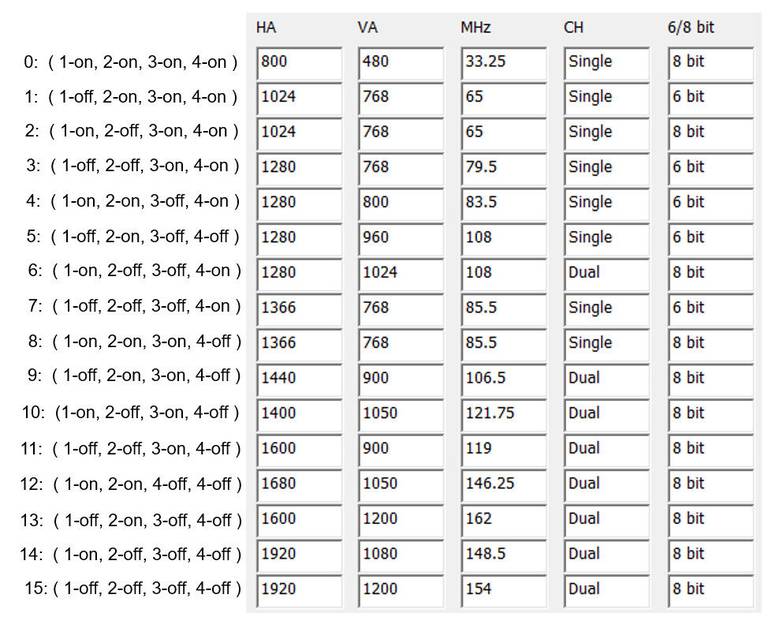
SW2
- LVDS Resolution setting
SW3
- SW3 ( 1-on ) : COM1 TERM RX Enable
- SW3 ( 1-off ) : COM1 TERM RX Disable
- SW3 ( 2-on ) : COM2 TERM RX Enable
- SW3 ( 2-off ) : COM2 TERM RX Disable
VDD1
- VDD1 ( Select 1,3 ): 3.3V
- VDD1 ( Select 3,5 ): 5V
- VDD1 ( Select 3,4 ): 12V
OS Download
Yocto 4.0: 2025-10-14
Recovery & Rescue Method
-
Download the Qualcomm Software Center
-
Open the Qualcomm Software Center
-
Search "PCAT" in the search bar

-
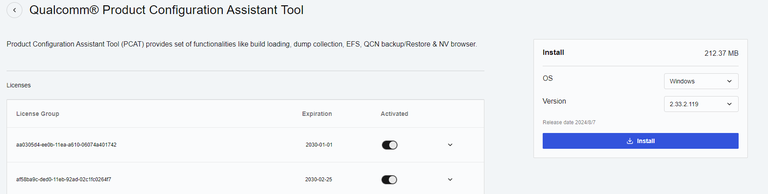
Click Qualcomm® Product Configuration Assistant Tool
-
Select Qualcomm® Product Configuration Assistant Tool version
- Version: 2.33.2.119
-
Install Qualcomm® Product Configuration Assistant Tool 2.33.2.119
-
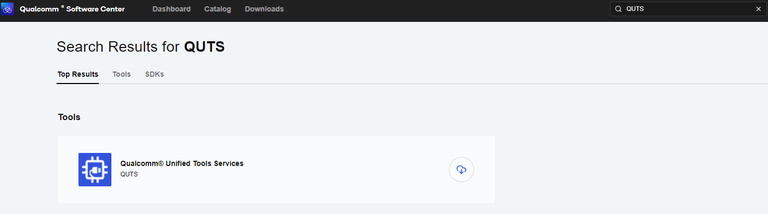
Search "QUTS" in the search bar
-
Click the Qualcomm® Unified Tools Services
-
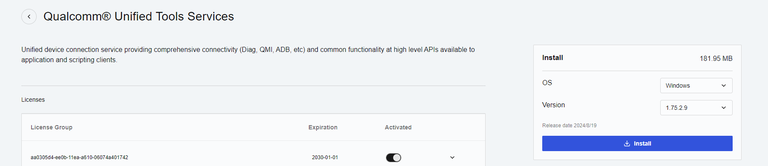
Select Qualcomm® Unified Tools Services version
- Version : 1.75.2.9
-
Install Qualcomm® Unified Tools Services 1.75.2.9
-
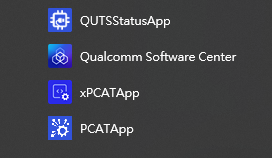
You will find the new application in your Windows system.
-
Unzip the UFS File and eMMC File. For example:
mio5355a1_yocto4.0.18-le1.1_v2.0.0_kernel-6.6.28_qcs6490_8g_emmc_2025-10-14.tgzmio5355a1_yocto4.0.18-le1.1_v2.0.0_kernel-6.6.28_qcs6490_8g_ufs_2025-10-14.tgz
-
Connect your device via Micro USB.
-
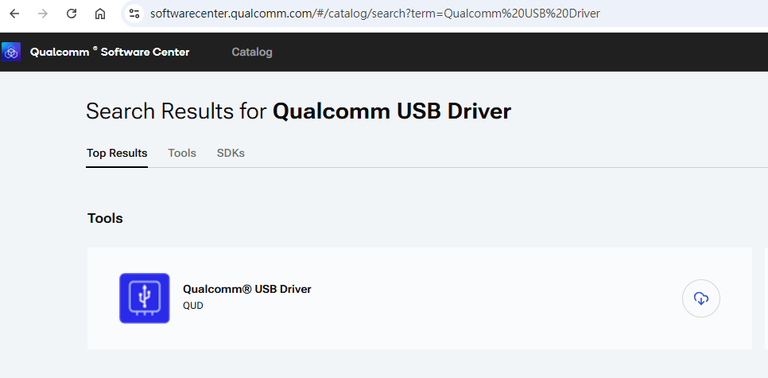
If your PC cannot identify the USB, please download the "Qualcomm USB Driver".
-
Search "Qualcomm USB Driver" in the search bar, then install the driver.
Flash UFS
For confirmation, we will erase the partition before UFS installation.
-
Change the SW1
- Flash UFS: the SW1 switch to 1-on, 3-on
-
Turn on the power
-
Open "PCATApp" Tool
-
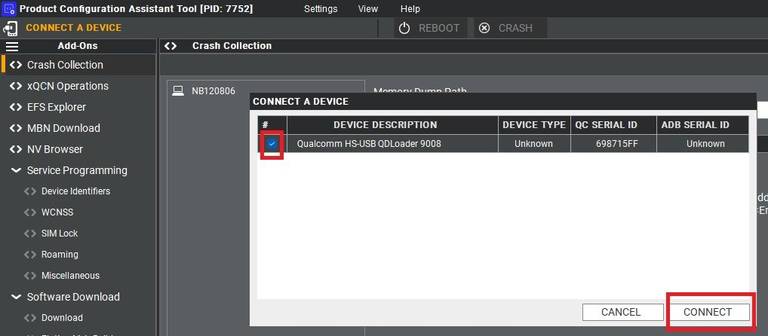
Select "Qualcomm HS-USB QDLoader 9008" and click connect
-
When you connected successfully, it will show green words: Qualcomm HS-USB QDLoader 9008 (COM 11)

-
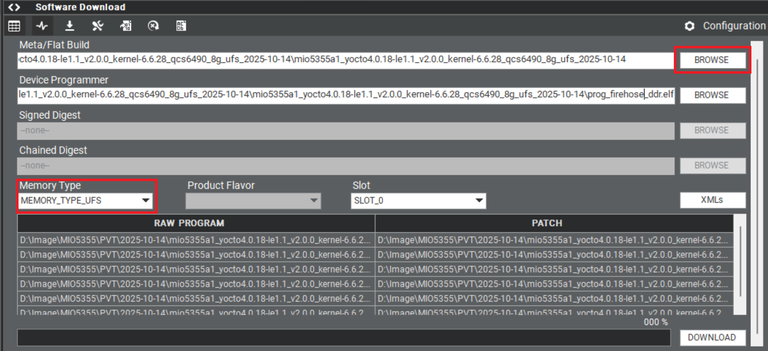
Select UFS Folder in PCAT Tool, the Tool will help load Files automatically and Select "MEMORY_TYPE_UFS"
-
Select provision button


-
Add the
prog_firehose_ddr.elfandprovision_ufs31.xmlin UFS folder.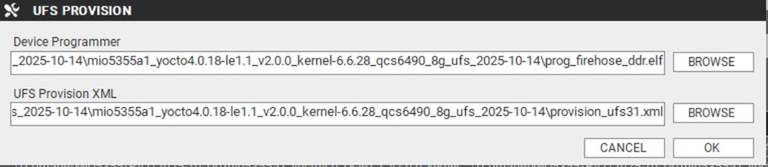
-
Then press "OK", it will start to do USF Provision.

-
When the Provision finished, you can see the result in message window.

-
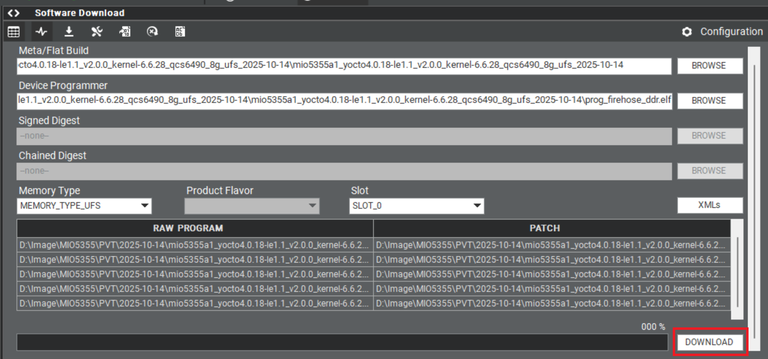
Click "Download"
-
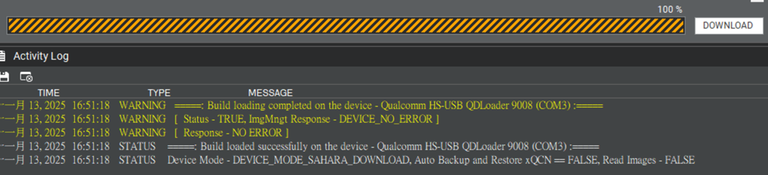
UFS Download completed
-
When you finish the download process, please change the switch.
- Flash UFS: the SW1 switch to 1-off
Flash eMMC
-
Turn off the Power
-
Change the SW1
- Flash eMMC: the SW1 switch to 1-on, 3-off
-
Turn on the power
-
Make sure the device connection status.
-
If the device disconnects with PCAT Tool, please connect it again.
-
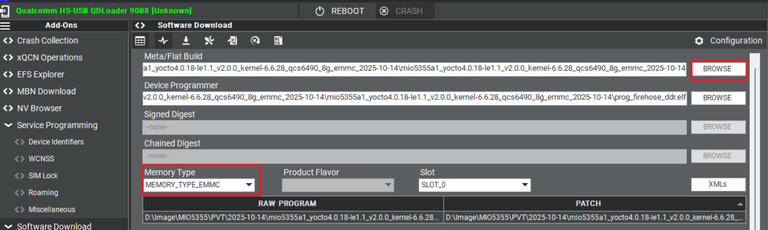
Select EMMC Folder in PCAT Tool, the Tool will help load Files automatically and Select "MEMORY_TYPE_EMMC"
-
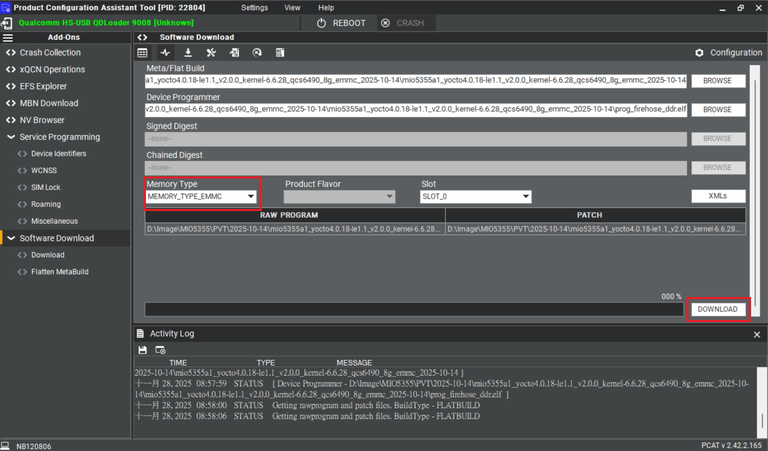
Make sure the setting, then press "Download" button.
-
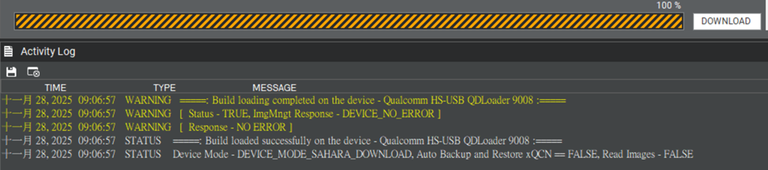
eMMC Download completed
-
When the eMMC installation finished, Close the PCAT tool.
-
Please remove the Micro USB cable, turn off the power.
-
eMMC boot up: SW1 switch to 1-off
-
Connect debug cable and open the terminal, turn on the power.
Linux BSP Compile Method
Yocto 4.0 (LE 1.1)
Basic Function Test
Linux BSP編譯方法(Linux BSP Compile Method)
完整的 BSP 編譯步驟請參考對應 OS 版本的 README: