Introduction
This document describes how to work with the RISC and Qualcomm LE GA1.3 (QLI 1.3) Board Support Package (BSP) release.
Yocto Version
Yocto 4.0.22
Kernel Version
Kernel 6.6.52
Host Machine Requirements
OS
Ubuntu 20.04 or Ubuntu 22.04
CPU
Intel Core-i7 Processor (>= 8 cores)
RAM
16+ GB RAM
Disk
350 GB free disk space (more is recommended and SSD is suggested for better performance)
Docker Install and BSP Download
Install Docker Engine on Your Platform
Please refer to Docker Installation Guide for details
Pull Docker Images
$ sudo docker pull advrisc/u20.04-qcslbv2:latest
Run Docker Example
$ mkdir -p /home/bsp/myLinux
$ sudo docker run --privileged -it --name qclinux -v /home/bsp/myLinux:/home/adv/BSP:rw advrisc/u20.04-qcslbv2 /bin/bash
adv@7cc0fa834366:~$ sudo chown adv:adv -R BSP
Download BSP
$ repo init -u https://dev.azure.com/AIM-Linux/risc_qcs_linux_le_1.3_public/_git/manifest -b main -m ${OFFICIAL_MANIFEST}
$ repo sync -c -j${YOUR_CPU_CORE_NUM}
- AOM-2721: A example of
${OFFICIAL_MANIFEST}is aom2721a1_yocto4.0.22-le1.3_v1.1.0_kernel-6.6.52_qcs6490+qcs5430.xml - AOM-5721: A example of
${OFFICIAL_MANIFEST}is aom5721a1_yocto4.0.22-le1.3_v0.0.1_kernel-6.6.52_qcs6490+qcs5430.xml - MIO-5355: A example of
${OFFICIAL_MANIFEST}is mio5355a1_yocto4.0.22-le1.3_v0.1.0_kernel-6.6.52_qcs6490.xml - DS-011: A example of
${OFFICIAL_MANIFEST}is ds011a1_yocto4.0.22-le1.3_v0.1.0_kernel-6.6.52_qcs6490.xml
If you want to get latest bsp
$ repo init -u https://dev.azure.com/AIM-Linux/risc_qcs_linux_le_1.3_public/_git/manifest -b main -m ${LATEST_MANIFEST}
$ repo sync -c -j${YOUR_CPU_CORE_NUM}
- AOM-2721:
${LATEST_MANIFEST}is aom2721a1_yocto4.0.22-le1.3_v0.0.0_kernel-6.6.52_qcs6490+qcs5430.xml - AOM-5721:
${LATEST_MANIFEST}is aom5721a1_yocto4.0.22-le1.3_v0.0.0_kernel-6.6.52_qcs6490+qcs5430.xml - MIO-5355:
${LATEST_MANIFEST}is mio5355a1_yocto4.0.22-le1.3_v0.0.0_kernel-6.6.52_qcs6490.xml - DS-011:
${LATEST_MANIFEST}is ds011a1_yocto4.0.22-le1.3_v0.0.0_kernel-6.6.52_qcs6490.xml
Get and Unzip the Downloads Files
Yocto downloads file:[ downloads_qcs6490_le1.3_public.tar.gz ]
The size of downloads_qcs6490_le1.3_public.tar.gz is 41937076025?byte (40,954,176 KB)
The md5sum of downloads_qcs6490_le1.3_public.tar.gz is ffdea91e5c562703e576c3c0087f771c
Build Instructions
Build Yocto Images in the Docker Container
$ cd /home/adv/BSP
$ MACHINE=${YOCTO_MACHINE_NAME} DISTRO=qcom-robotics-ros2-humble QCOM_SELECTED_BSP=custom source setup-robotics-environment
$ ../qirp-build qcom-robotics-full-image
- AOM-2721:
${YOCTO_MACHINE_NAME}is qcs6490aom2721a1 - AOM-5721:
${YOCTO_MACHINE_NAME}is qcs6490aom5721a1 - MIO-5355:
${YOCTO_MACHINE_NAME}is qcs6490mio5355a1 - DS-011:
${YOCTO_MACHINE_NAME}is qcs6490ds011a1
Output ufs images: build-qcom-robotics-ros2-humble/tmp-glibc/deploy/images/qcm6490/qcom-robotics-full-image Output emmc images: build-qcom-robotics-ros2-humble/tmp-glibc/deploy/images/qcm6490/qcom-robotics-full-image-emmc
Device Guides
QCS6490
- AOM-2721
- AOM-5721
- MIO-5355
- DS-011
| SW1 | 1 | 2 |
|---|---|---|
| UFS | ON | ON |
| eMMC | OFF | ON |
| SW2 | 1 | 2 |
|---|---|---|
| USB EDL Mode | ON | |
| Normal Mode | OFF | |
| AT | ON | |
| ATX | OFF |
| AOM-5721 SW1 | 1 | 2 |
|---|---|---|
| UFS | OFF | |
| eMMC | ON | |
| USB EDL Mode | ON | |
| Normal Mode | OFF |
| AOM-DB6700 SW2 | 4 |
|---|---|
| USB EDL Mode | ON |
| Normal Mode | OFF |
| SW1 | 1 | 2 | 3 | 4 |
|---|---|---|---|---|
| USB EDL Mode | ON | |||
| Normal Mode | OFF | |||
| AT | ON | |||
| ATX | OFF | |||
| UFS | ON | |||
| eMMC | OFF | |||
| LVDS | ON | |||
| eDP | OFF |
| SW1 | 1 | 2 |
|---|---|---|
| UFS | ON | ON |
| eMMC | OFF | ON |
| SW7 | |
|---|---|
| USB EDL Mode | LEFT |
| Normal Mode | RIGHT |
Recovery & Rescue
Using BSP Launcher or QDL(Qualcomm Device Download) tool to flash software images to the device.
Prepare images
Get the Official Images and Unzip
EX:
$ sudo tar -zxvf aom5721a1_yocto4.0.22-le1.3_v0.0.1_kernel-6.6.52_qcs6490+qcs5430_6490-16g-8g+5430-8g-4g_emmc_2026-01-15.tgz
Build Folder Images
cd ${workspace}/build-qcom-robotics-ros2-humble/tmp-glibc/deploy/images/${YOCTO_MACHINE_NAME}/qcom-robotics-full-image
Use BSP Launcher to Flash image on x86 Ubuntu Host
Please use BSP Launcher
Use QDL Tool to Flash Image on x86 Windows Host
QDL User and Installation Guide
Overview
Qualcomm Device Loader (QDL ) is a software tool that communicates with Qualcomm USB devices to upload a flash loader and flash software images.
Installation Guide
-
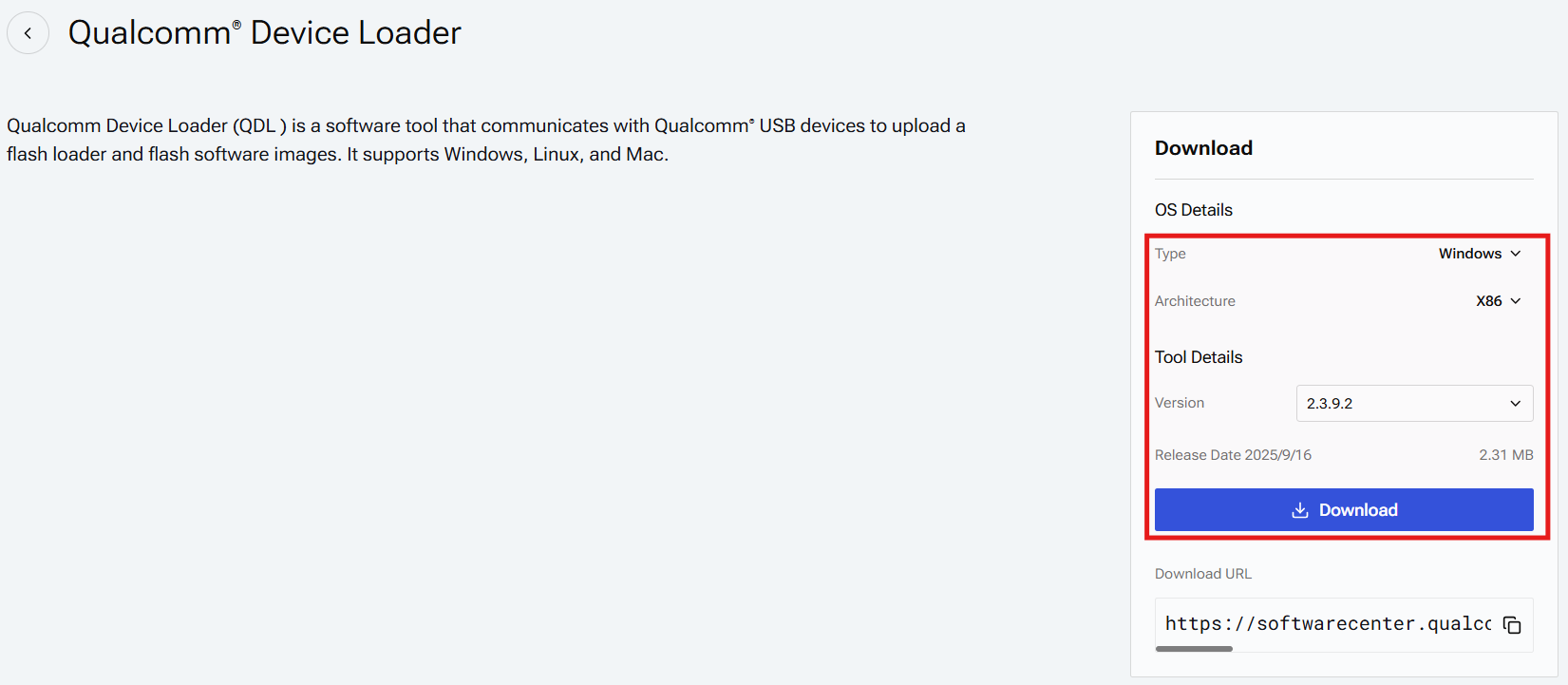
Download Qualcomm Device Loader from below link https://softwarecenter.qualcomm.com/catalog/item/Qualcomm_Device_Loader
-
According your host mach to select OS type and which version you want
-
Unzip download file in any path
-
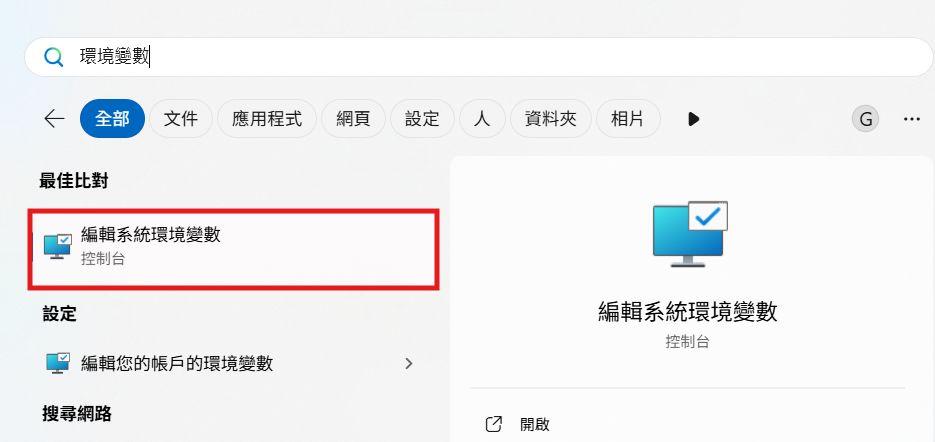
Serach Edit the system environment variables (?��?變數) to open Advanced system settings Also you can open Settings app ??System ??About ??Advanced system settings ??Advanced
-
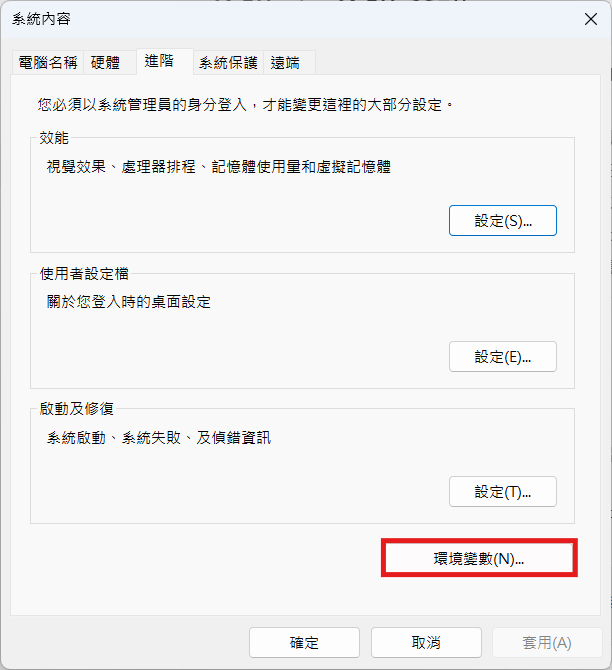
Select Environment Variables (?��?變數)
-
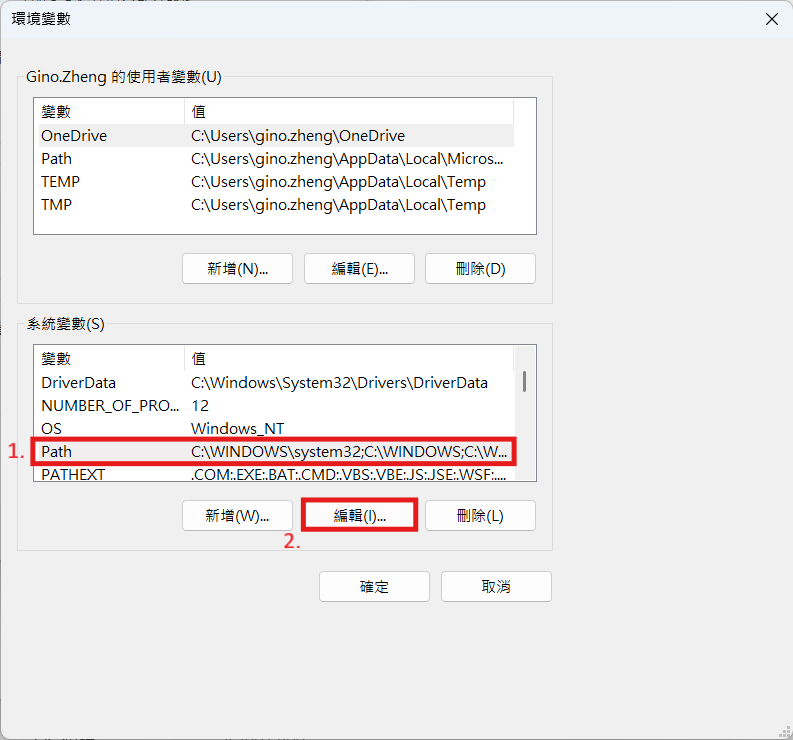
Select Path then edit (編輯)
-
Select New (?��?) and type the Qualcomm Device Loader path then select OK (確�?)
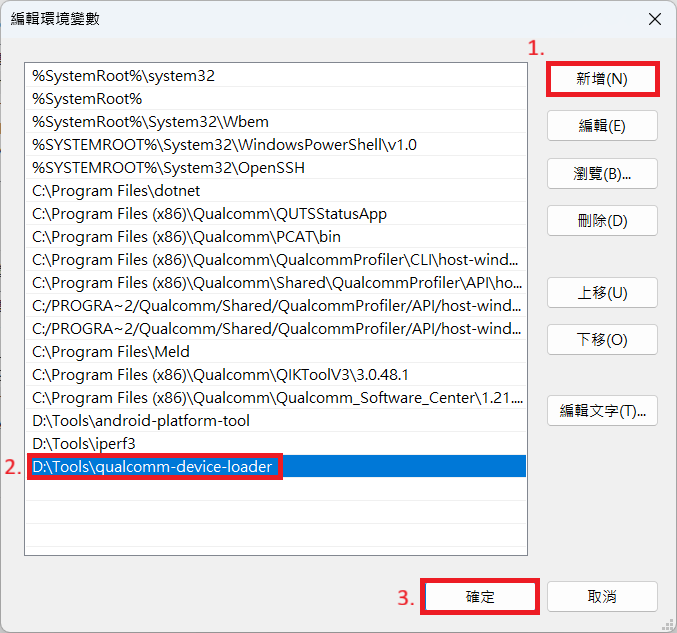
-
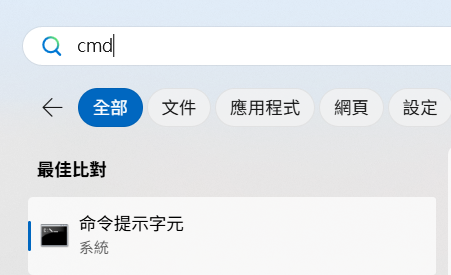
Search cmd to open Windows Terminal
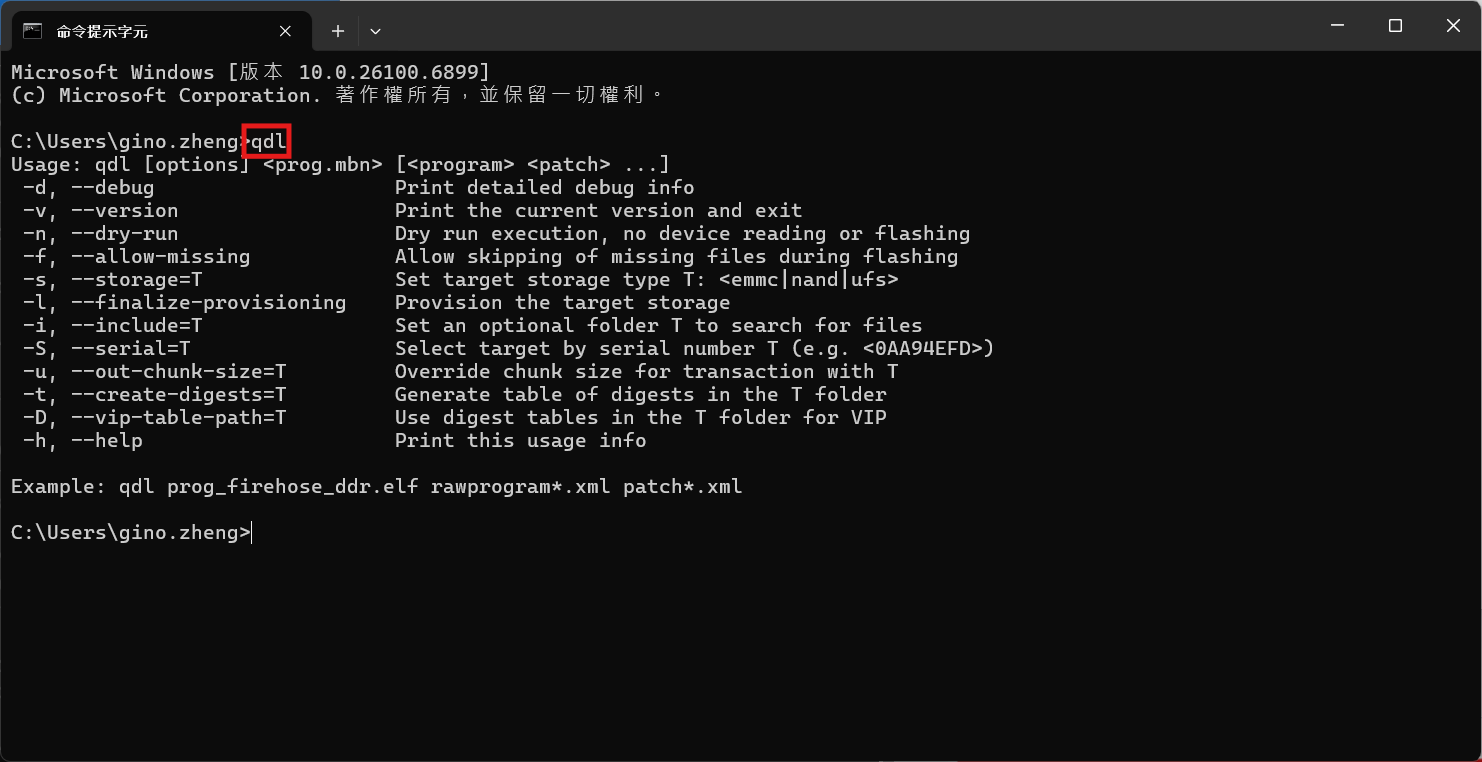
- Type qdl and you can see the QDL usage now!!
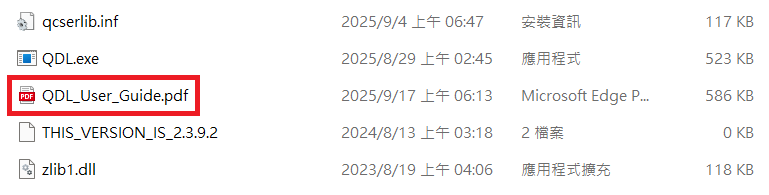
You can see the QDL_User_Guide.pdf for more details
winUSB Installation Guide
- Let board enter EDL mode
Please check Device Guides for more details
-
Connect the EDL USB port to PC
-
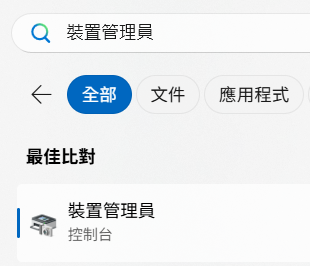
Search device manager (裝置管�???
-
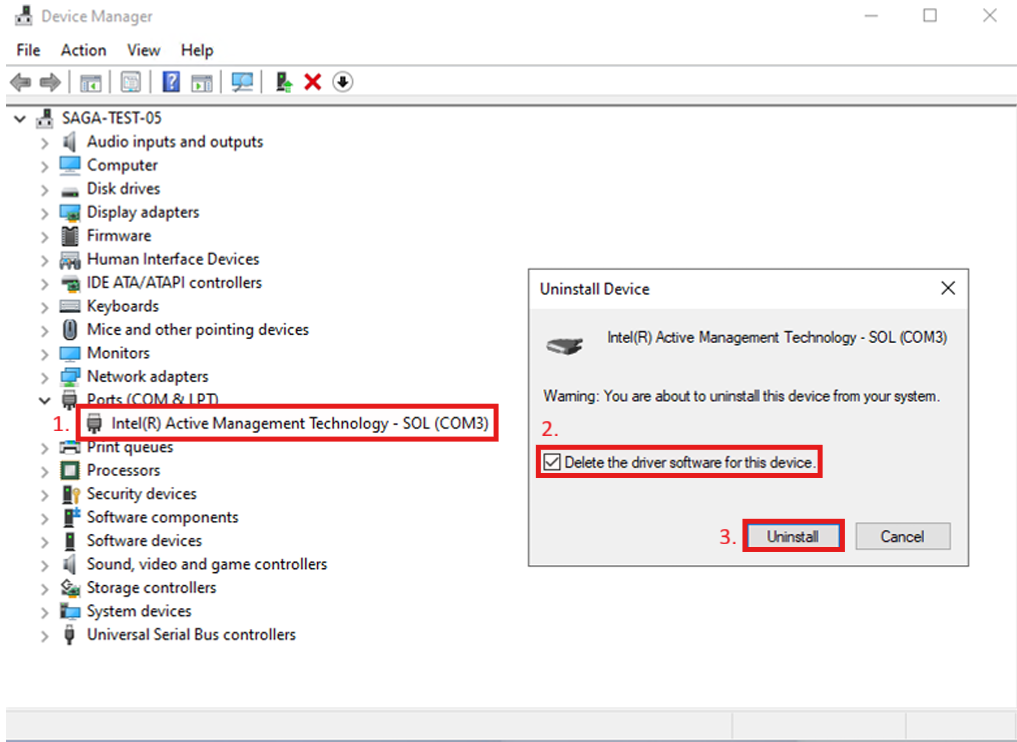
Uninstall other drivers for the device
-
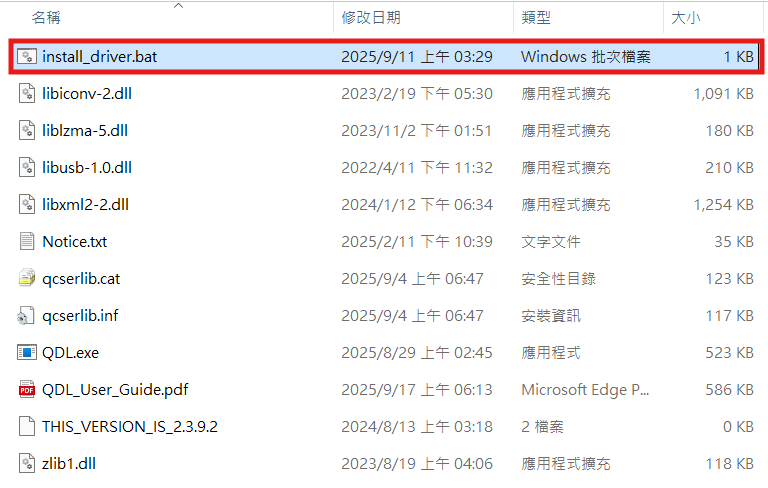
Open install_driver.bat in QDL path to install winUSB driver
-
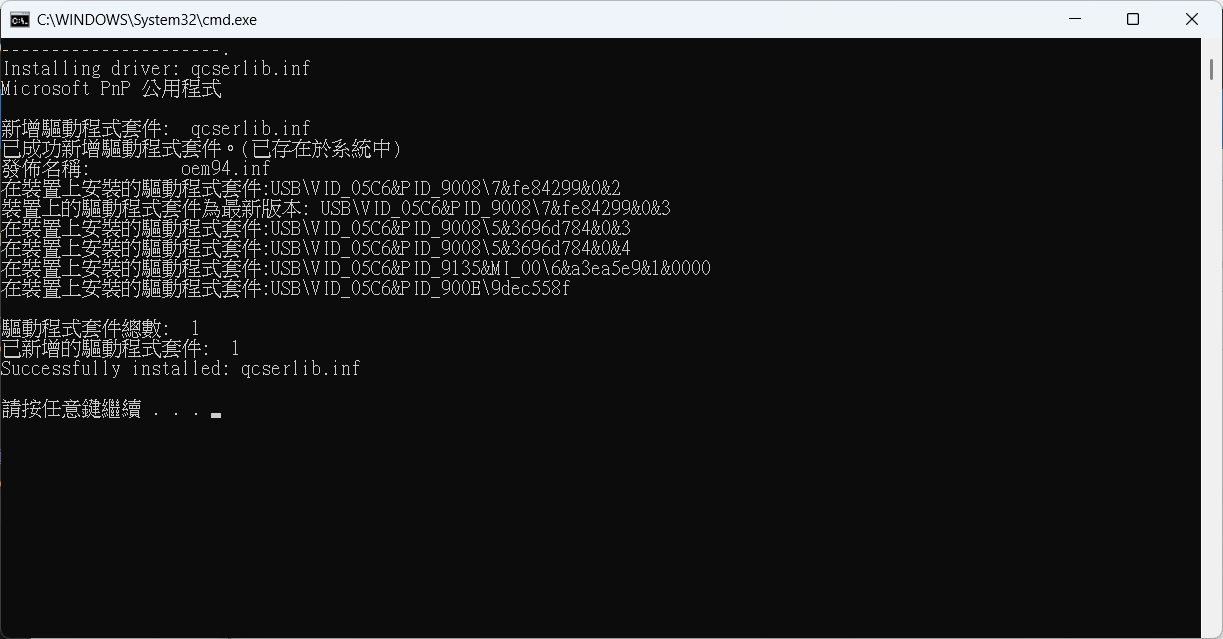
Press any key to close window
Let device in EDL mode and connect the EDL USB Port to HOST.
Please check Device Guides for more details
Open terminal and enter the image folder:
EX:
cd ${workspace}/build-qcom-robotics-ros2-humble/tmp-glibc/deploy/images/${YOCTO_MACHINE_NAME}/qcom-robotics-full-image
Choosing the platform to flashing image.
QCS6490
QCS6490 Platform Flashing Guide

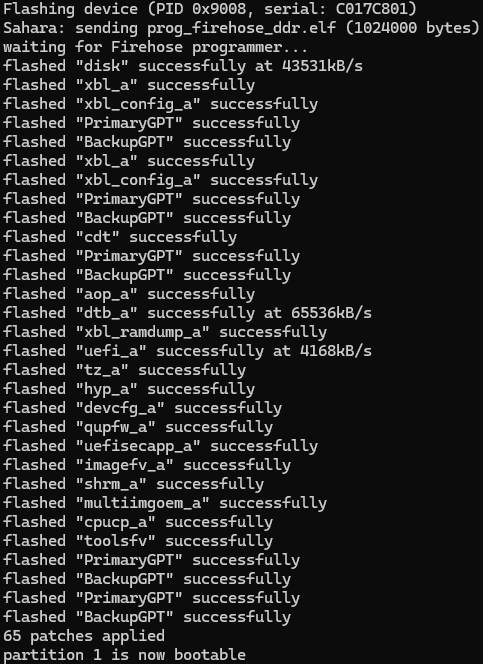
Switch device to Normal Mode and power on device
Customization
Setting up SDK
You can download the sdk from [ sdk.qcs6490.le.1.3.tar.gz ]
The size of sdk.qcs6490.le.1.1.r00041.0.tar.gz is 5303727696?byte (5,179,422?KB)
The md5sum of sdk.qcs6490.le.1.1.r00041.0.tar.gz is f200fabd69c4751c61c280b6583449e7
Or perform the following command in terminal console
$ cd build-qcom-robotics-ros2-humble/tmp-glibc/deploy/sdk
$ sudo ./qcom-robotics-ros2-humble-x86_64-qcom-robotics-full-image-armv8-2a-qcs6490aom2721a1-toolchain-2.1.2.sh
Enter new installed directory or just press Enter to use default directory. While Proceed[Y/n]? shows up, please enter the correct one.
Waiting for the SDK installed (while the following messages show up completely)
Setting up cross compiling environment
SDK has been set up (ref.Setting_up_SDK) Perform the following command in terminal console
$ source ${TOOLCHAIN}/environment-setup-armv8-2a-qcom-linux