IoTGateway/BSP/Android/ApplicationDevelopGuide
Contents
- 1JDK Install 1.1JDK download 1.2JDK install 1.3JDK Environment Configuartion
- 2Build Android Studio development environment 2.1Introduction 2.2To install JDK 2.3To install Android Studio
- 3Build Eclipse development environment 3.1To install JDK 3.2To install Eclipse 3.3To install Android ADT Plug-in 3.4To install SDK
- 4ADB Tool 4.1ADB Environment Configuartion 4.2How to use Android ADB 4.2.1Use otg connected device for debugging. 4.2.2Use the LAN connected device for debugging
JDK Install
JDK download
Please download "jdk-8u121-windows-x64.exe" from http://www.oracle.com/technetwork/java/javase/downloads/jdk8-downloads-2133151.html .
JDK install
Launch the .exe file you downloaded . Follow the setup wizard to install JDK .
JDK Environment Configuartion
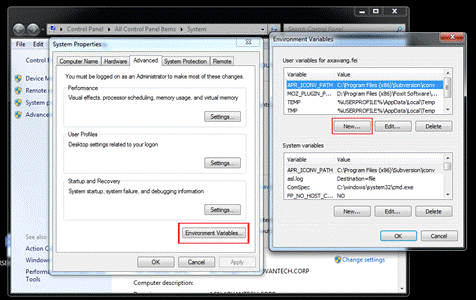
- Then refer to the following step to open system variables window: Computer -> Properties -> Advanced system settings -> Advanced -> envionment variables.
- Create a new system variable JAVA_HOME. The variable value is the location where JDK installed, such as: D:\Program Files\Java\jdk1.8.0_121
- Create a new system variable CLASS_PATH. The variable value is: .;%JAVA_HOME%\lib;%JAVA_HOME%\lib\tools.jar;
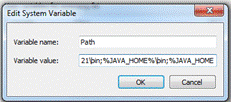
- Edit system variable PATH. Add: %JAVA_HOME%\bin;%JAVA_HOME%\jre\bin;
- Restart the computer
Build Android Studio development environment
Introduction
This document describes how to build Android Application development environment(Android Studio v2.2.3) for Windows. Android Studio is the official Integrated Development Environment(IDE) for Android app development, based on IntelliJ IDEA . For an introduction to Android Studio, please visit the websit https://developer.android.com/studio/index.html .
To install JDK
Please refer to Chapter 1 "JDK Install".
To install Android Studio
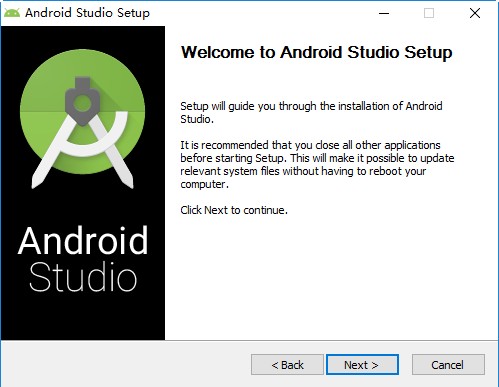
Please download "android-studio-bundle-145.3276617-windows.exe" from https://developer.android.com/studio/index.html . Launch the .exe file you downloaded. Follow the setup wizard to install Android Studio and any necessary SDK tools. The following pictures shows each step of the recommended setup procedure:
1 - Click Next to start setup.
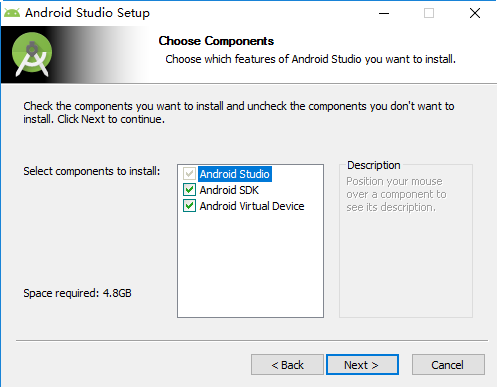
2 - Choose components.
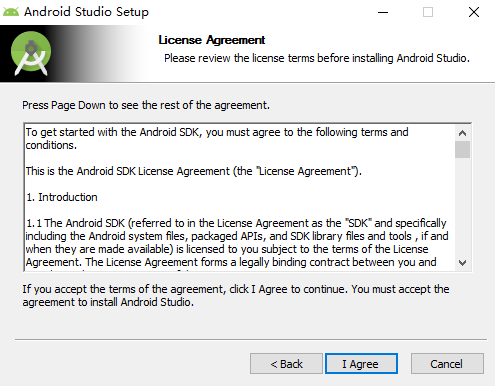
3 - Agree with the license.
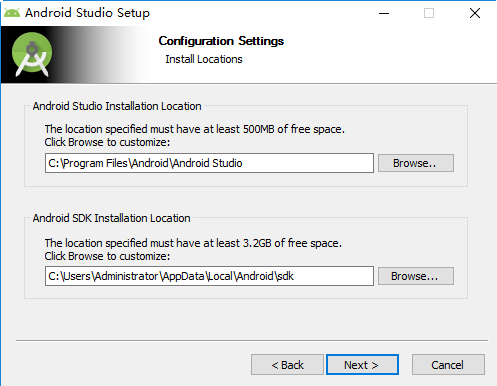
4 - Set installation location.
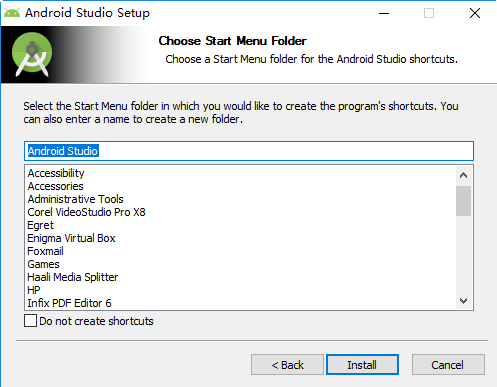
5 - Choose start menu folder.
6 - Installing Android Studio.
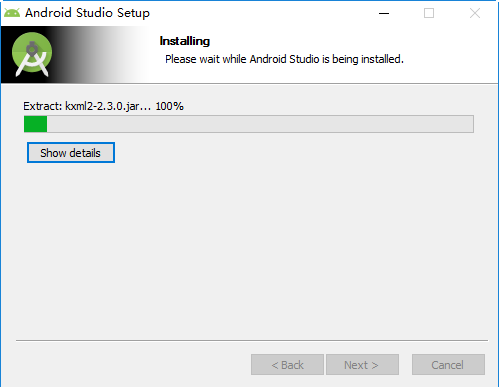
7 - Install finushed.
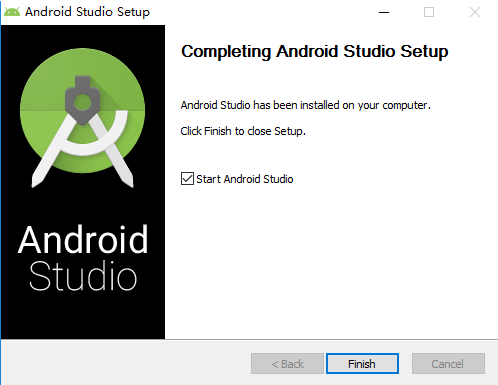
Then, Refer to the following step to install Android SDK (You might see these pictures(8~14) when you use Android Studio for the first time. If you have no idea how to do, Just ignore them and always choose the next step.):
8 - Import settings from a previous version of studio.
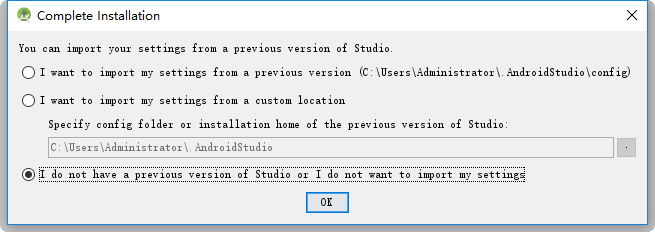
9 - Click Cancel to continue.

10 - Click Next to continue.
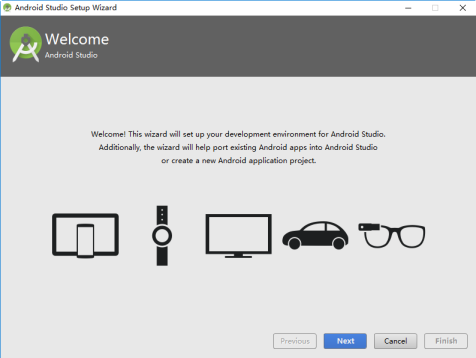
11 - Choose the setup type.
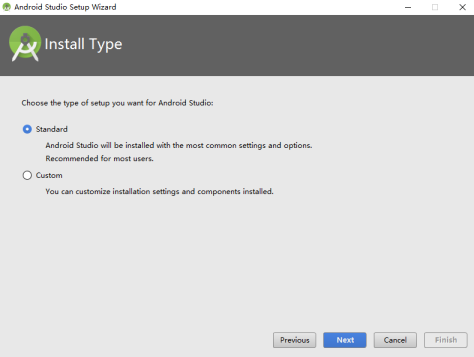
12 - Check the Android SDK components you want to install.
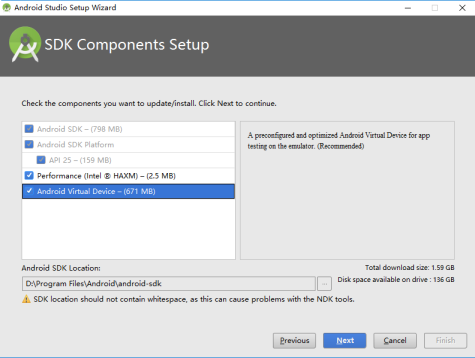
13 - Verify settings and start SDK install.
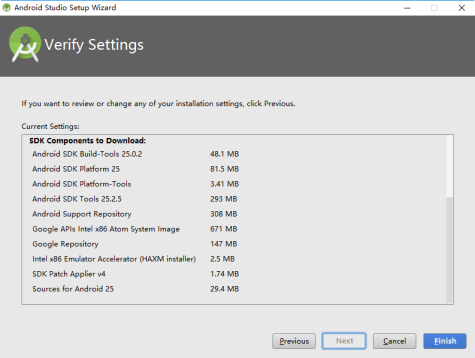
14 - Installing Android SDK.
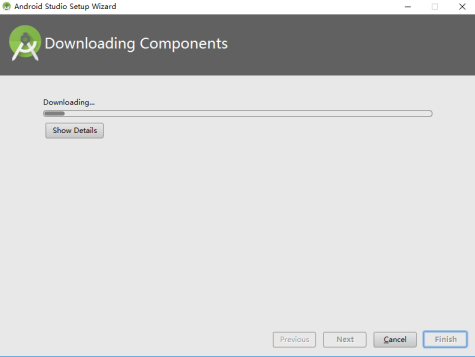
15 - Finished install.
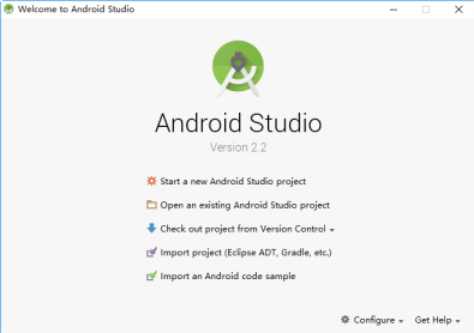
For get more information about Android Studio, please visit the official user guide https://developer.android.com/studio/intro/index.html .
Build Eclipse development environment
To install JDK
Please refer to Chapter 1 "JDK Install".
To install Eclipse
Please download "eclipse-jee-juno-SR2-win32-x86_64.zip" from
After the download is complete, unzip directly to the desired directory, double-click the eclipse icon to use, without additional installation process.
To install Android ADT Plug-in
Follow the setup wizard to install Android ADT plug-in .
The following pictures shows each step of the recommended setup procedure:
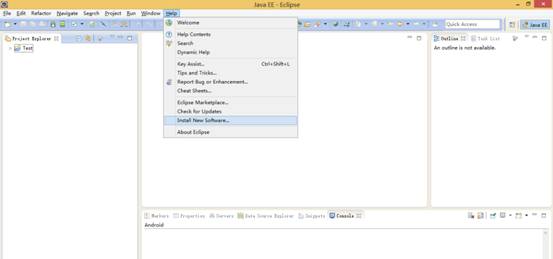
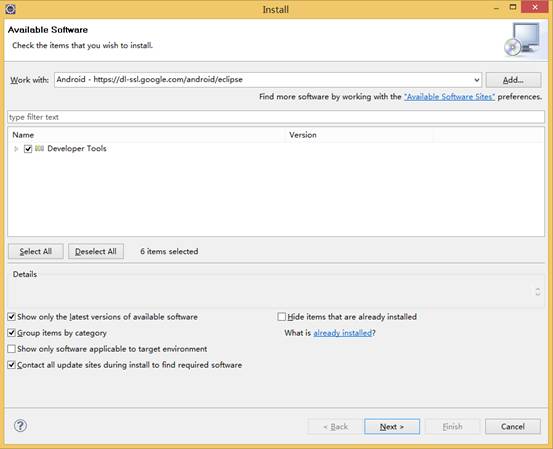
- Open eclipse->help->install new software
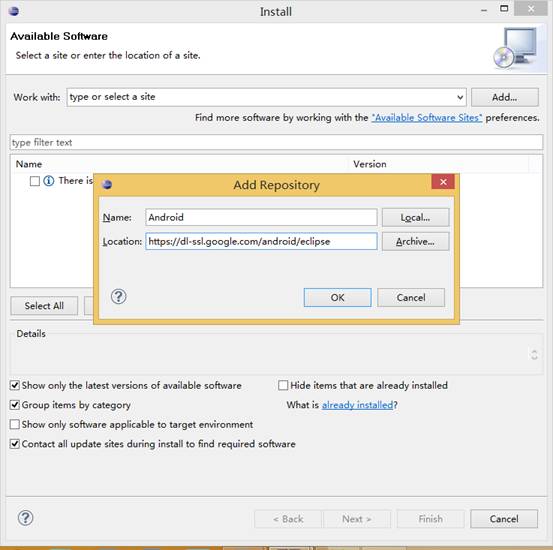
- Click Add to Add Repository Name:Android Location:
- Choose Developer Tools.
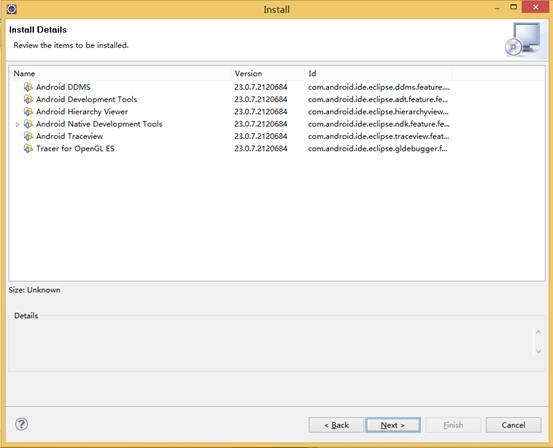
- Click Next.
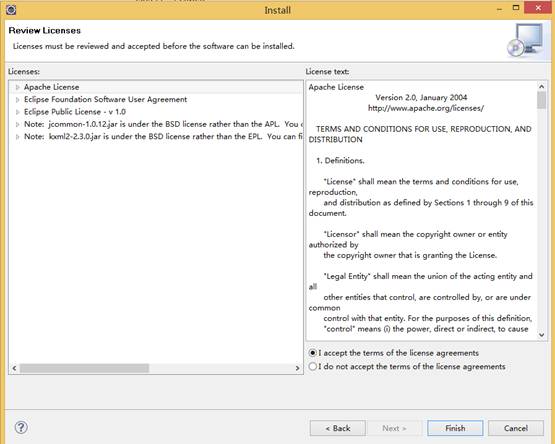
- Agree with the license.
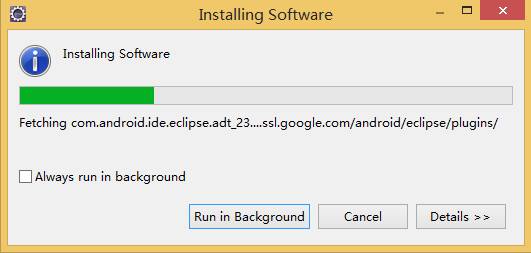
- Installing ADT plug-in.
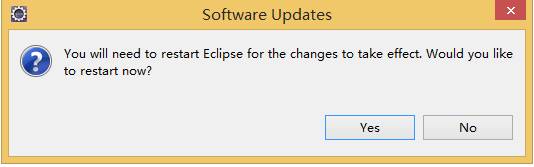
- Install finished and Restart Eclipse.
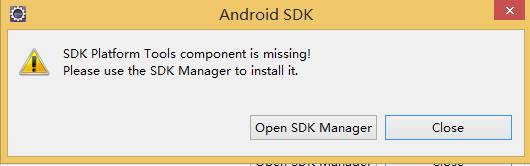
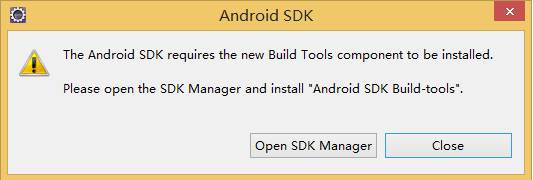
To install SDK
Please download " installer_r24.1.2-windows.exe " from https://dl.google.com/android/installer_r24.1.2-windows.exe . Launch the .exe file you downloaded . Follow the setup wizard to install necessary SDK tools.
The following pictures shows each step of the recommended setup procedure:
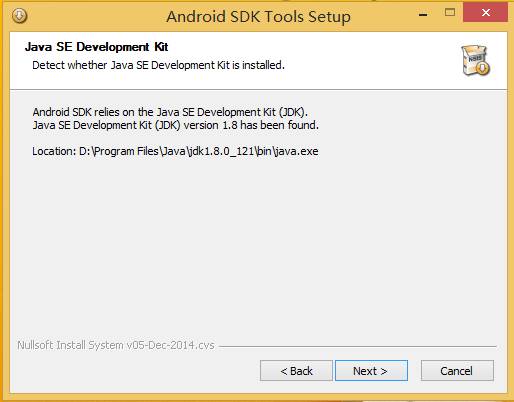
- Click Next to start setup.
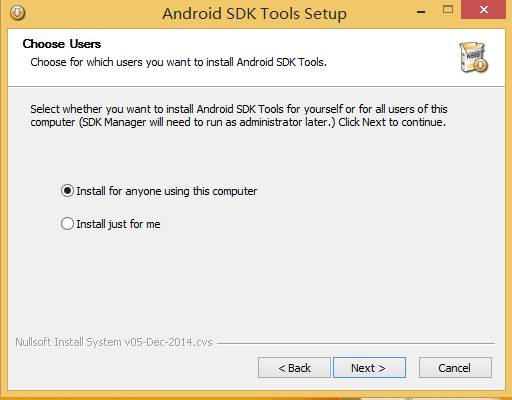
- Choose Users.
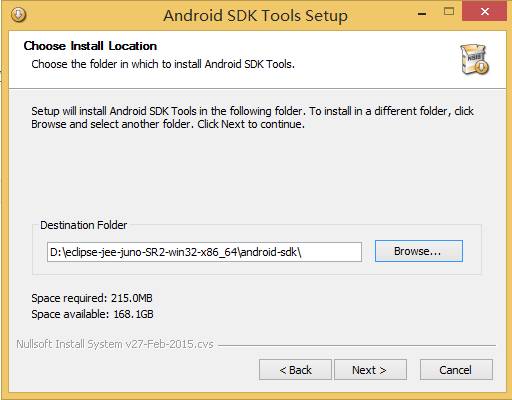
- Set installation location.
- Installing Android SDK Tool.
- Install SDK Tool finushed.
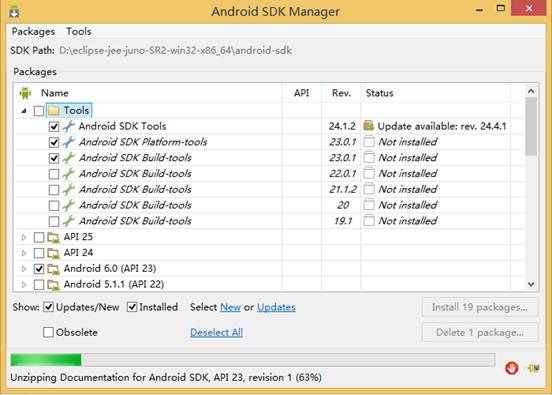
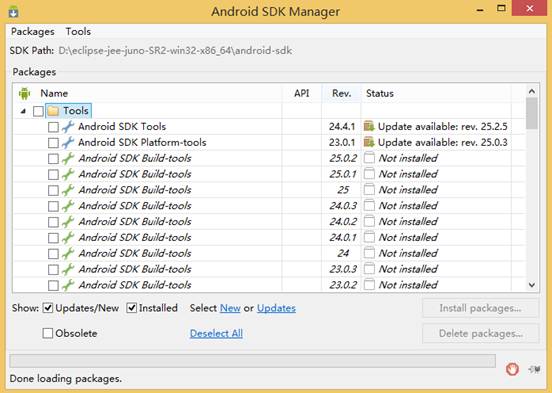
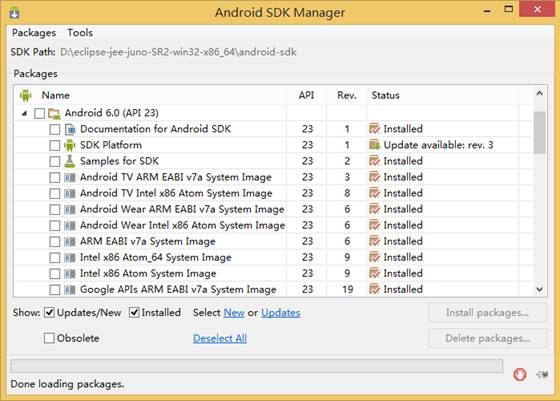
- Open SDK Manager.
- Choose the necessary components,Then click Install to installing SDK components.
- Install finushed.
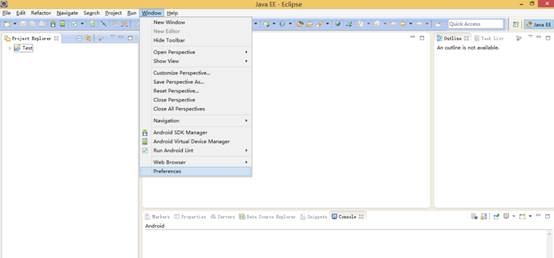
- Open eclipse->Window->preferences.
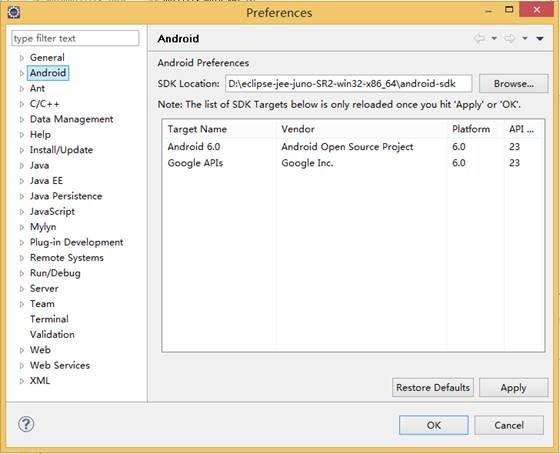
- Click Android and Browse to Set SDK Location. SDK Location: Fill in the path of your SDK installation
ADB Tool
ADB Environment Configuartion
- Edit system variable PATH. Add platform-tools path Then refer to the following step to open system variables window: Computer -> Properties -> Advanced system settings -> Advanced -> enviornment variables Edit system variable path. Add the variable value is the location where SDK installed, Such as: D:\eclipse-jee-juno-SR2-win32-x86_64\android-sdk\platform-tools;
- Restart the computer.
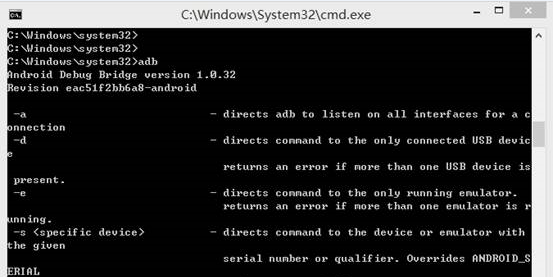
- Verification. Open cmd.exe and 3xecute adb command.
How to use Android ADB
ADB debugging needs to ensure that the device is in developer mode
Use otg connected device for debugging.
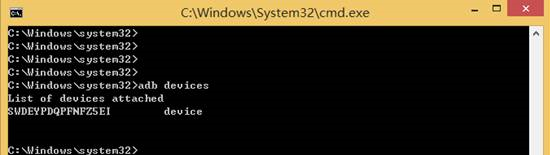
- View the device
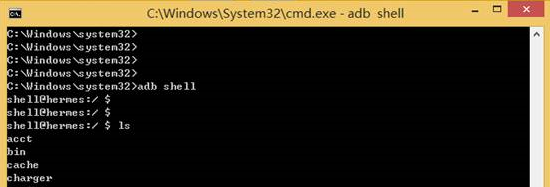
- Enter the shell terminal and execute the shell command
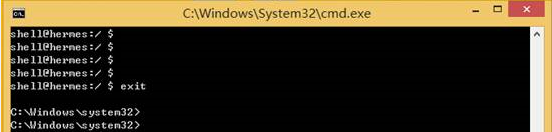
- Exit the shell command
Use the LAN connected device for debugging
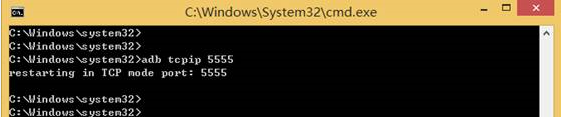
- Restart devices service Network debugging must ensure that debugging machine and equipment in the same local area network. First use the otg connect device to execute the following command and then disconnect the otg connection.
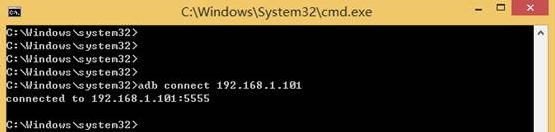
- connect devices
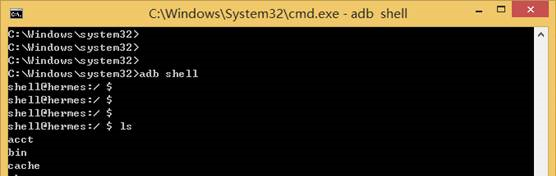
- Enter the shell terminal and execute the shell command
- Exit the shell command
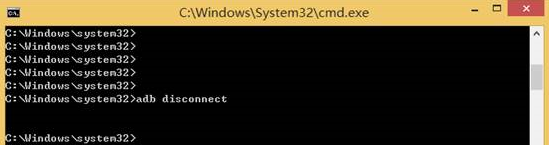
- Disconnect the devices
For get more information about ADB, please visit the official user guide http://adbshell.com/ .