Introduction
This document describes how to work with the RISC and Qualcomm QLI 2.0 Board Support Package (BSP) release.
Yocto Version
Yocto 6.0.1
Kernel Version
Kernel 6.18.30
Host Machine Requirements
OS
Ubuntu 22.04 or Ubuntu 24.04
CPU
Intel Core-i7 Processor (>= 8 cores)
RAM
16+ GB RAM
Disk
350 GB free disk space (more is recommended and SSD is suggested for better performance)
Docker Install and BSP Download
Install Docker Engine on Your Platform
Please refer to Docker Installation Guide for details
Pull Docker Images
sudo docker pull advrisc/u22.04-qcslbv1:20260908
Run Docker Example
mkdir -p /home/bsp/myLinux
sudo docker run --privileged -it --name qclinux -v /home/bsp/myLinux:/home/adv/BSP:rw advrisc/u22.04-qcslbv1:20260908 /bin/bash
adv@7cc0fa834366:~$ sudo chown adv:adv -R BSP
Download BSP
cd BSP
repo init -u https://AIM-Linux@dev.azure.com/AIM-Linux/adv-arm-yocto-bsp/_git/adv-arm-yocto-bsp -b qcom-linux-wrynose -m ${OFFICIAL_MANIFEST}
repo sync -c -j${YOUR_CPU_CORE_NUM}
kas_ci="meta-advantech-qualcomm/ci"
kas_list="${kas_ci}/base.yml"                          # Base source
kas_list="${kas_list}:${kas_ci}/addons/capsule.yml"    # Option: Capsule related meta layer
kas checkout ${kas_list}
| Platform | Machine | OFFICIAL_MANIFEST |
|---|---|---|
| QCS6490 | AOM-2721 | aom2721a1_yocto6.0.1-qli2.0_v0.0.1_kernel-6.18.30_qcs6490.xml |
| IQ9075 | AIR-055 | air055a1_yocto6.0.1-qli2.0_v0.0.1_kernel-6.18.30_iq9075.xml |
If you want to get latest bsp
cd BSP
repo init -u https://AIM-Linux@dev.azure.com/AIM-Linux/adv-arm-yocto-bsp/_git/adv-arm-yocto-bsp -b qcom-linux-wrynose -m adv-6.18.30-qli.2.0.xml
repo sync -c -j${YOUR_CPU_CORE_NUM}
kas_ci="meta-advantech-qualcomm/ci"
kas_list="${kas_ci}/base.yml"                          # Base source
kas_list="${kas_list}:${kas_ci}/addons/capsule.yml"    # Option: Capsule related meta layer
kas checkout ${kas_list}
Get and Unzip the Downloads Files
Yocto downloads file:[ downloads.qualcomm.qli.2.0.tar ]
The size of the compressed file is 58.13 GB
The md5sum of the compressed file is 3601cdea7f0869eb8bacb0b42625d3d1
Build Instructions
Build Yocto Images in the Docker Container
cd /home/adv/BSP
kas_ci="meta-advantech-qualcomm/ci"
kas_list="${kas_ci}/machines/${YOCTO_MACHINE_NAME}.yml"
kas_list="${kas_list}:${kas_ci}/feature/performance.yml" # Optional: Fast boot & minimal initramfs settings
kas_list="${kas_list}:${kas_ci}/distro/sota.yml"         # Optional: OSTree OTA Updates
kas_list="${kas_list}:${kas_ci}/addons/capsule.yml"      # Optional: NHLOS OTA Updates
kas build ${kas_list}
| Machine | YOCTO_MACHINE_NAME |
|---|---|
| AOM-2721 | aom2721a1 |
| AIR-055 | air055a1 |
Output images: build/tmp/deploy/images/${YOCTO_MACHINE_NAME}/qcom-multimedia-proprietary-image-${YOCTO_MACHINE_NAME}.rootfs.qcomflash
UFS and eMMC Flash Images
The output image folder supports UFS flashing by default. You may need to prepare the flash folder manually depending on your target storage type (UFS or eMMC). The partition_ufs/ and partition_emmc/ directories contain partition layout files specific to each storage type. You can use the following method to prepare for UFS or eMMC flashing.
UFS Flash Images
1. Remove all gpt*.bin and *.xml files from the image root folder.
cd <image_folder>
rm -f gpt*.bin *.xml
2. Copy the following files from partition_ufs/ to the image root folder.
for f in partition_ufs/gpt_backup{0..5}.bin; do [ -f "$f" ] && cp "$f" .; done
for f in partition_ufs/gpt_main{0..5}.bin; do [ -f "$f" ] && cp "$f" .; done
for f in partition_ufs/rawprogram{0..5}.xml; do [ -f "$f" ] && cp "$f" .; done
for f in partition_ufs/patch{0..5}.xml; do [ -f "$f" ] && cp "$f" .; done
cp partition_ufs/provision*.xml .
eMMC Flash Images
1. Remove all gpt*.bin and *.xml files from the image root folder.
cd <image_folder>
rm -f gpt*.bin *.xml
2. Copy the following files from partition_emmc/ to the image root folder.
for f in partition_emmc/gpt_backup{0..1}.bin; do [ -f "$f" ] && cp "$f" .; done
for f in partition_emmc/gpt_main{0..1}.bin; do [ -f "$f" ] && cp "$f" .; done
for f in partition_emmc/rawprogram{0..1}.xml; do [ -f "$f" ] && cp "$f" .; done
for f in partition_emmc/patch{0..1}.xml; do [ -f "$f" ] && cp "$f" .; done
The folder is now ready for eMMC flashing.
Device Guides
QCS6490 Device Guides
- AOM-2721
- AOM-5721
- MIO-5355
- DS-011
| SW1 | 1 | 2 |
|---|---|---|
| UFS | ON | ON |
| eMMC | OFF | ON |
| SW2 | 1 | 2 |
|---|---|---|
| USB EDL Mode | ON | |
| Normal Mode | OFF | |
| AT | ON | |
| ATX | OFF |
| AOM-5721 SW1 | 1 | 2 |
|---|---|---|
| UFS | OFF | |
| eMMC | ON | |
| USB EDL Mode | ON | |
| Normal Mode | OFF |
| AOM-DB6700 SW2 | 4 |
|---|---|
| USB EDL Mode | ON |
| Normal Mode | OFF |
| SW1 | 1 | 2 | 3 | 4 |
|---|---|---|---|---|
| USB EDL Mode | ON | |||
| Normal Mode | OFF | |||
| AT | ON | |||
| ATX | OFF | |||
| UFS | ON | |||
| eMMC | OFF | |||
| LVDS | ON | |||
| eDP | OFF |
| SW1 | 1 | 2 |
|---|---|---|
| UFS | ON | ON |
| eMMC | OFF | ON |
| SW7 | |
|---|---|
| USB EDL Mode | LEFT |
| Normal Mode | RIGHT |
IQ9075 Device Guides
- AIR-055
| SW1 | 1 |
|---|---|
| ON | AT |
| OFF | ATX |
| SW3 | 1 | 2 |
|---|---|---|
| USB EDL Mode | ON | ON |
| Normal Mode | OFF | OFF |
Recovery & Rescue
Using BSP Launcher or QDL (Qualcomm Device Download) tool to flash software images to the device.
Prepare images
Get the Official Images and Unzip
EX:
sudo tar -zxvf aom2721a1_yocto6.0.1-qli2.0_v0.0.1_kernel-6.18.30_qcs6490_8g_ufs+emmc_2026-10-06.tgz
Build Folder Images
cd ${workspace}/build/tmp/deploy/images/${YOCTO_MACHINE_NAME}/qcom-multimedia-proprietary-image-${YOCTO_MACHINE_NAME}.rootfs.qcomflash
Use BSP Launcher to Flash image on x86 Ubuntu Host
Please use BSP Launcher
Use QDL Tool to Flash Image
Windows x86 QDL User and Installation Guide
Overview
Qualcomm Device Loader (QDL ) is a software tool that communicates with Qualcomm USB devices to upload a flash loader and flash software images.
Installation Guide
-
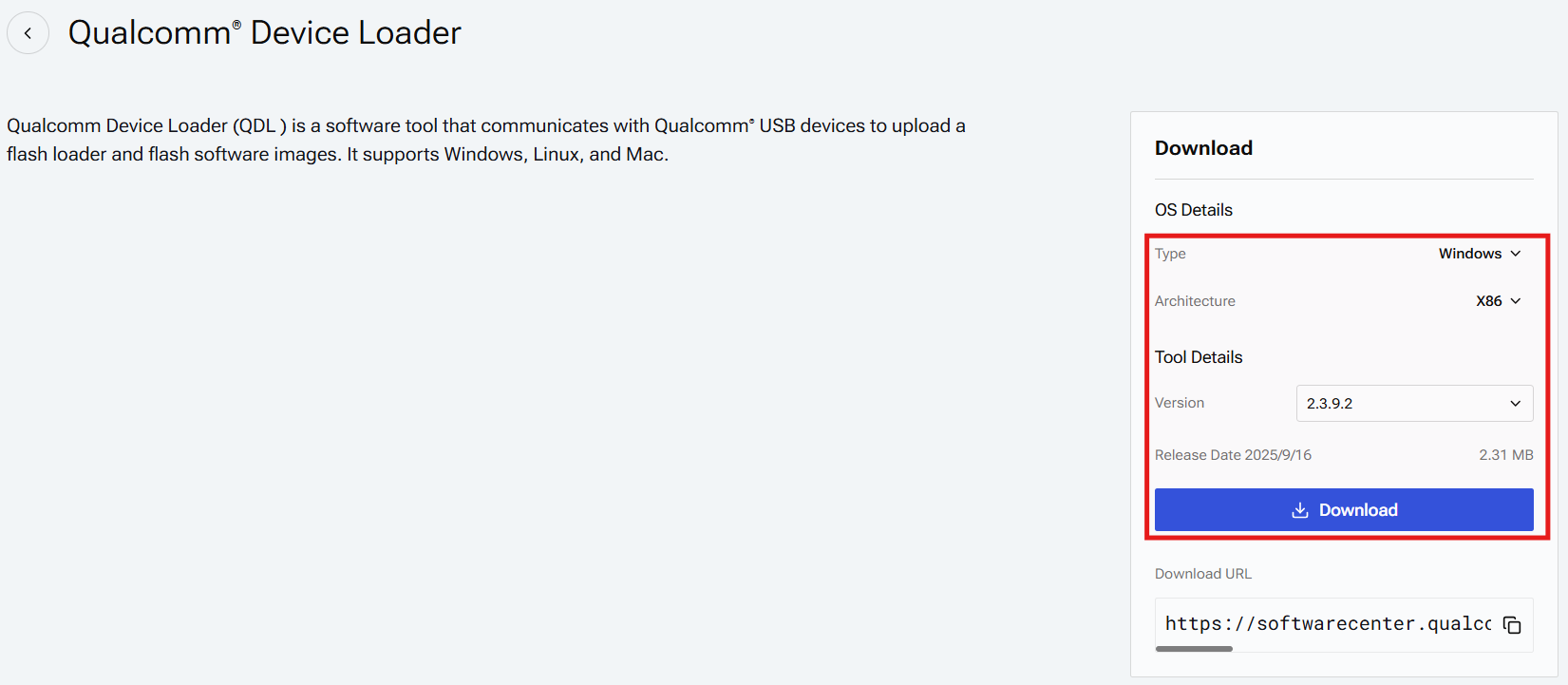
Download Qualcomm Device Loader from below link https://softwarecenter.qualcomm.com/catalog/item/Qualcomm_Device_Loader
-
According your host mach to select OS type and which version you want
-
Unzip download file in any path
-
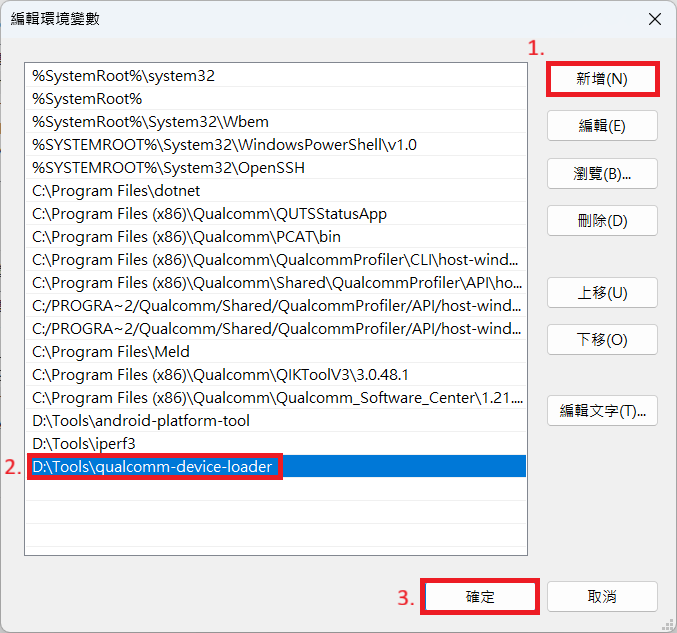
Serach Edit the system environment variables (環境變數) to open Advanced system settings
Also you can open Settings app → System → About → Advanced system settings → Advanced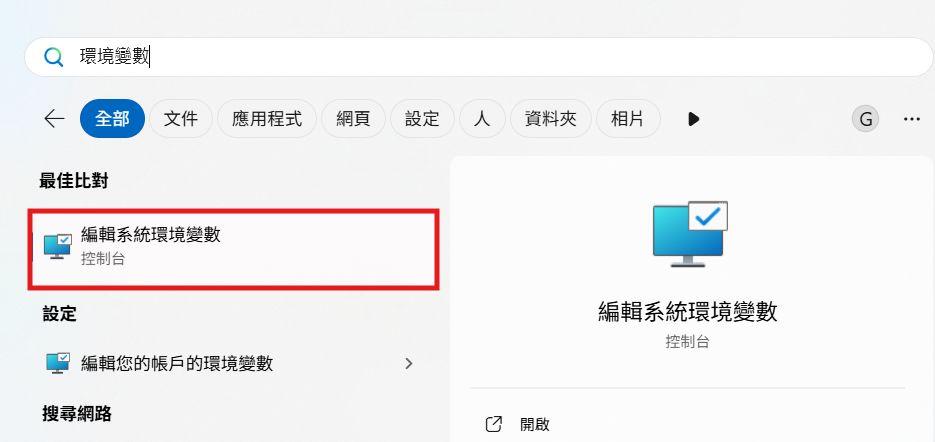
-
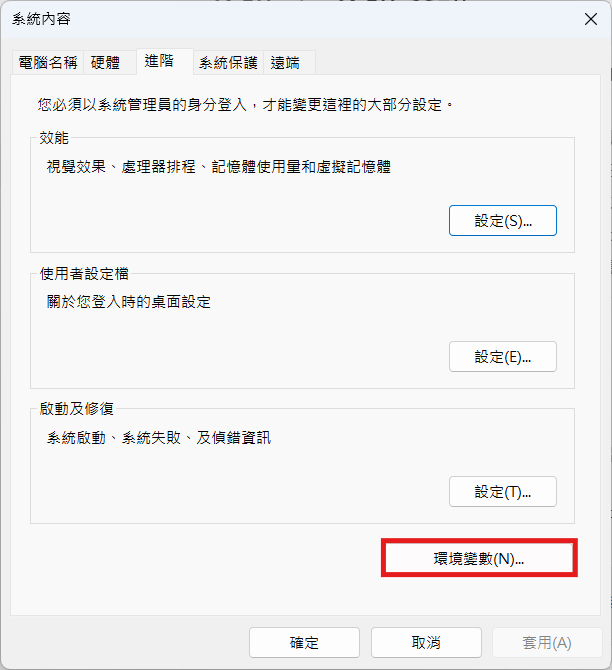
Select Environment Variables (環境變數)
-
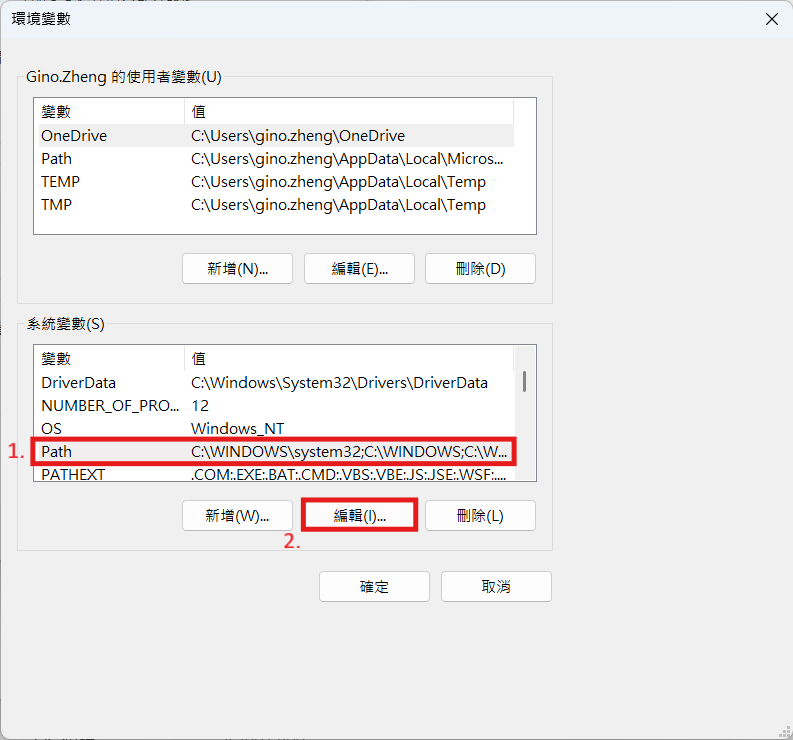
Select Path then edit (編輯)
-
Select New (新增) and type the Qualcomm Device Loader path then select OK (確定)
-
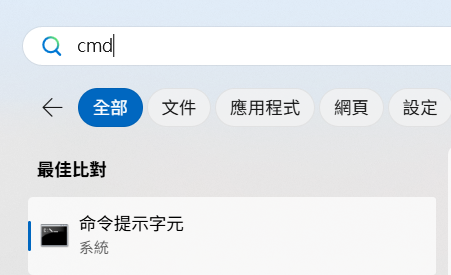
Search cmd to open Windows Terminal
-
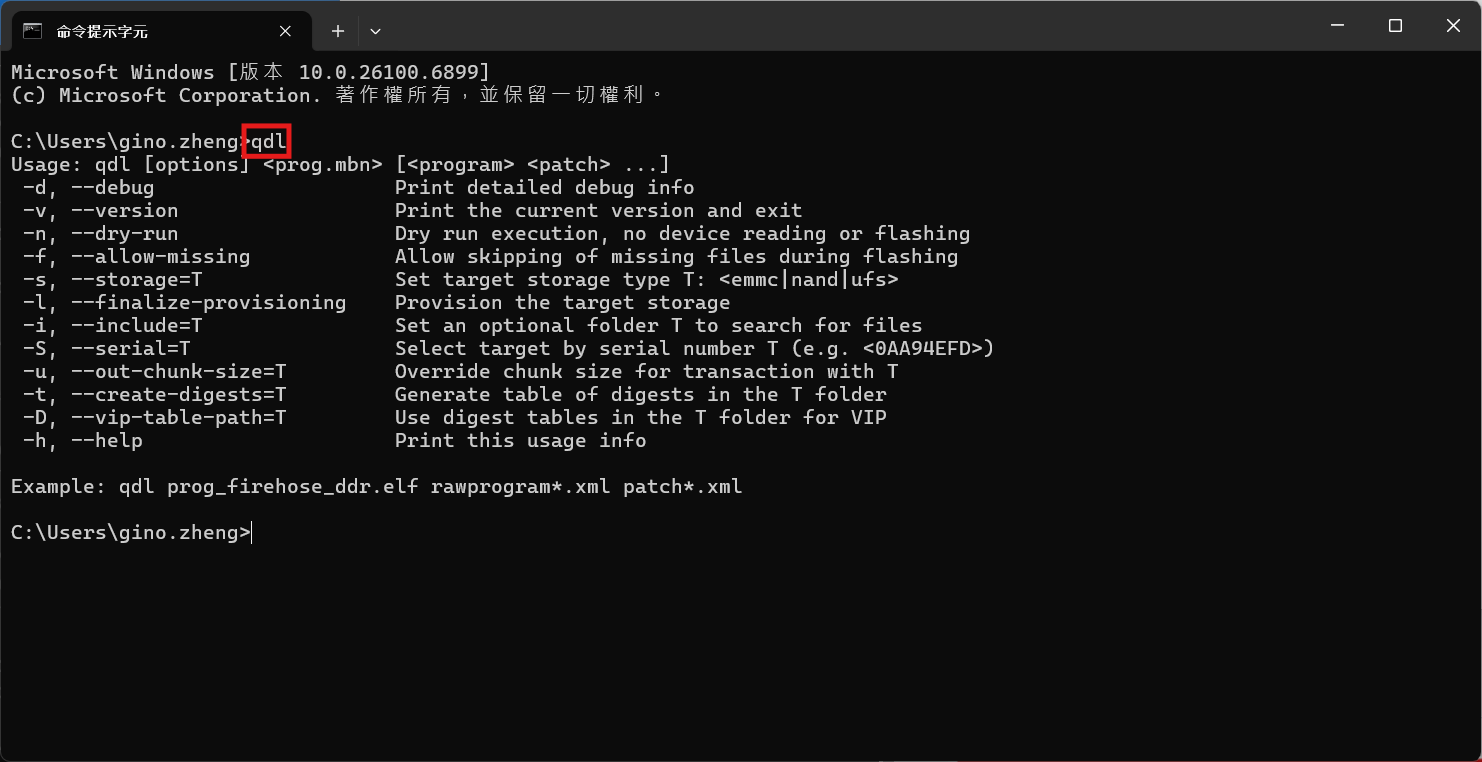
Type qdl and you can see the QDL usage now!!
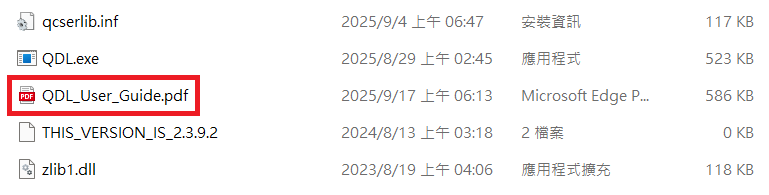
You can see the QDL_User_Guide.pdf for more details
winUSB Installation Guide
- Let board enter EDL mode
Please check Device Guides for more details
-
Connect the EDL USB port to PC
-
Search device manager (裝置管理員)
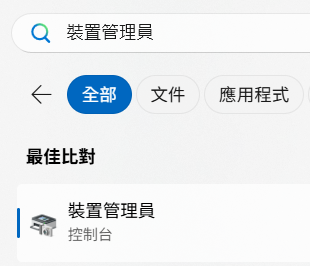
-
Uninstall other drivers for the device
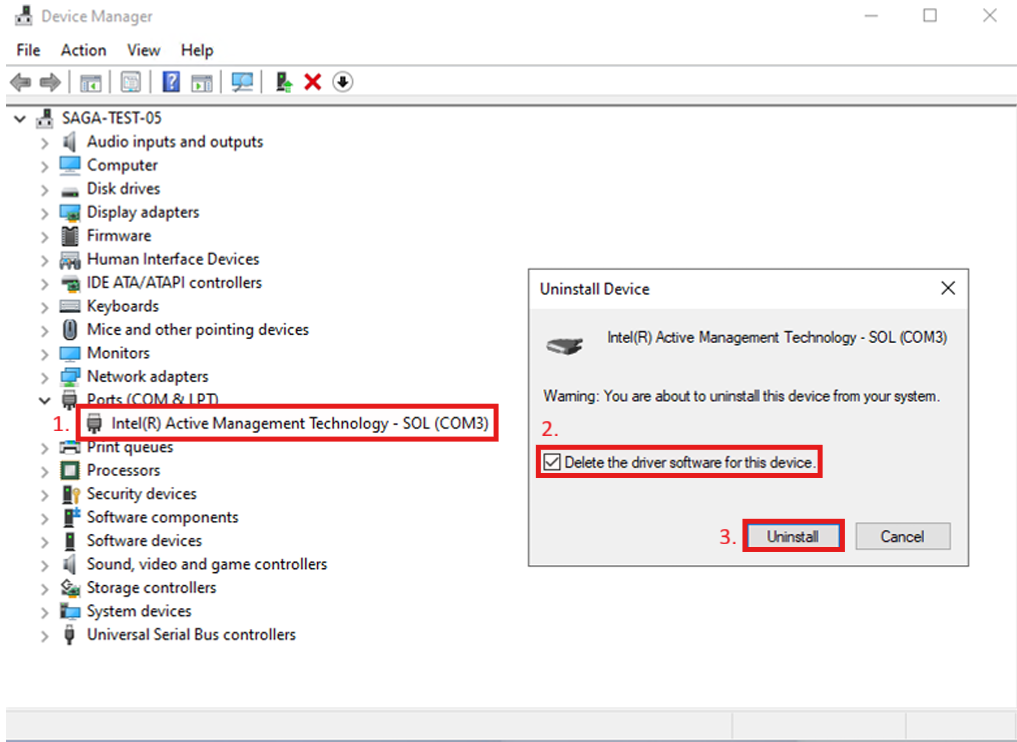
-
Open install_driver.bat in QDL path to install winUSB driver
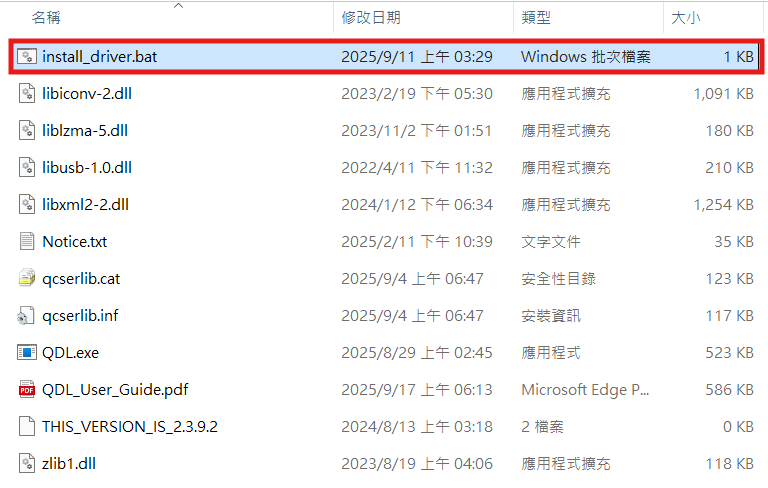
-
Press any key to close window
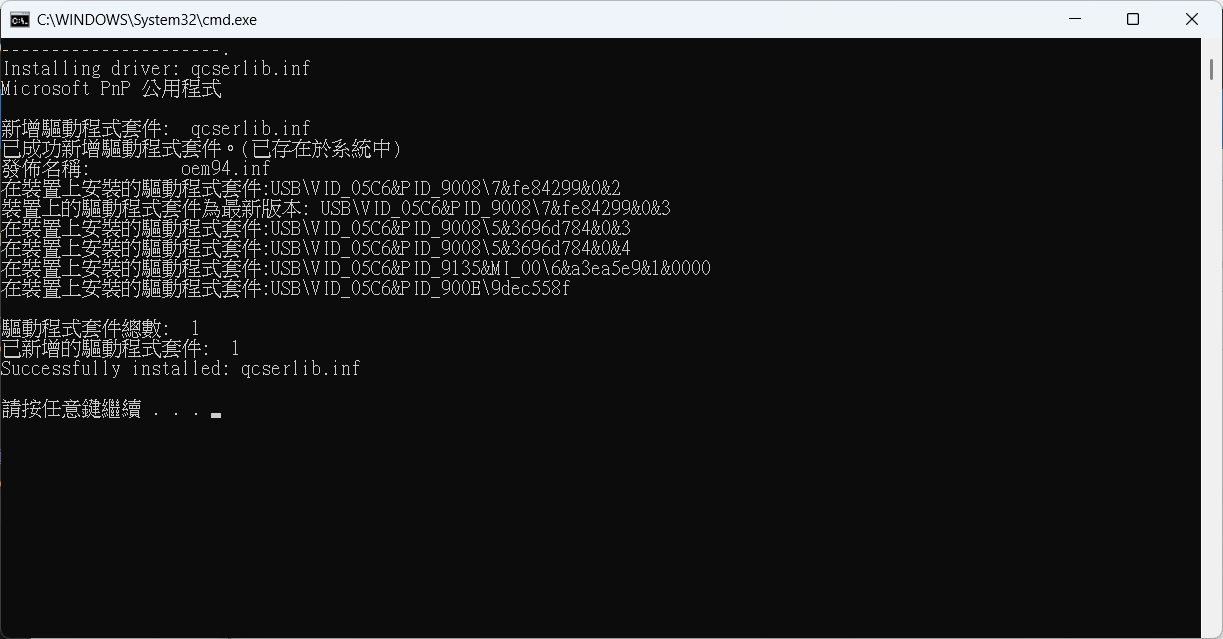
Linux x86 QDL User and Installation Guide
Overview
Qualcomm Device Loader (QDL ) is a software tool that communicates with Qualcomm USB devices to upload a flash loader and flash software images.
Installation Guide
-
Add Qualcomm USB udev rules (one-time prerequisite)
Add below line in
/etc/udev/rules.d/51-qcom-usb.rulesSUBSYSTEMS=="usb", ATTRS{idVendor}=="05c6", ATTRS{idProduct}=="9008", MODE="0666", GROUP="plugdev" -
Restart
udevservicesudo systemctl restart udev -
Download Qualcomm Device Loader from below link https://softwarecenter.qualcomm.com/catalog/item/Qualcomm_Device_Loader
-
According your host mach to select OS type and which version you want
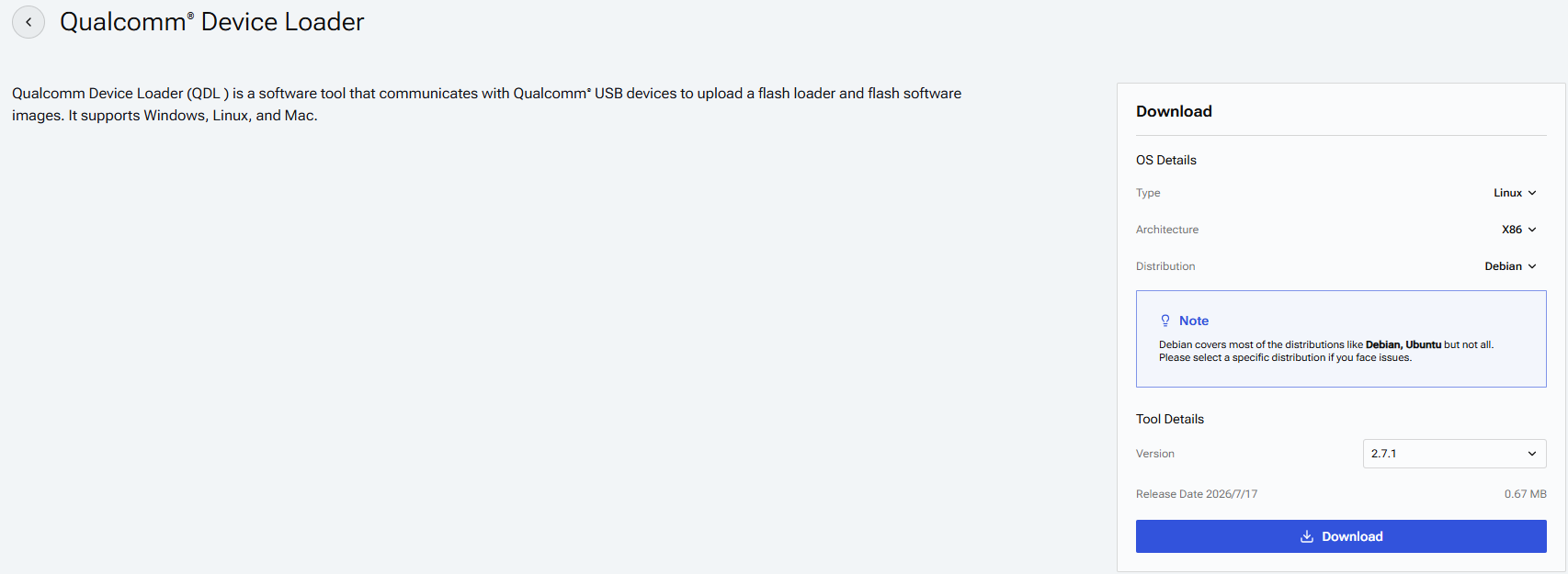
-
Unzip download file in any pah
unzip QDL_2.7.1_Linux_x64.zip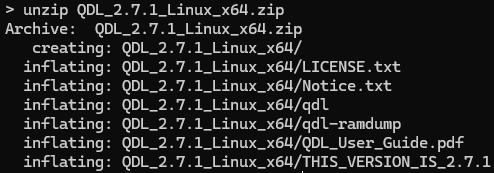
-
Change the qdl tools permission
sudo chmod 755 QDL_2.7.1_Linux_x64/qdl* -
Install dependency packages
sudo apt-get install libxml2 libzip-dev -
Type qdl and you can see the QDL usage now!!
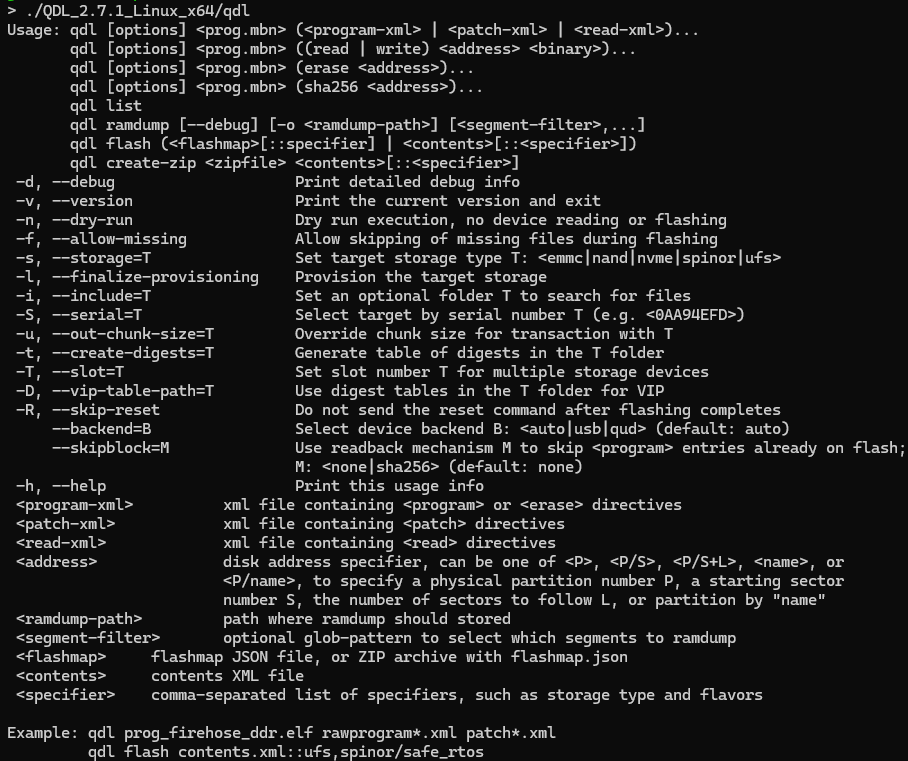
You can see the QDL_User_Guide.pdf for more details
-
Move qdl tools to global path
sudo mv QDL_2.7.1_Linux_x64/qdl* /usr/local/bin/
Let device in EDL mode and connect the EDL USB Port to HOST.
Please check Device Guides for more details
Open terminal and enter the image folder:
EX:
cd ${workspace}/build/tmp/deploy/images/aom2721a1/qcom-multimedia-proprietary-image-aom2721a1.rootfs.qcomflash
Choosing the platform to flashing image.
QCS6490
QCS6490 Platform Flashing Guide
Flash UFS provision (Once only)
qdl prog_firehose_ddr.elf provision_ufs31.xml

Flash UFS All Images
qdl prog_firehose_ddr.elf rawprogram*.xml patch*.xml
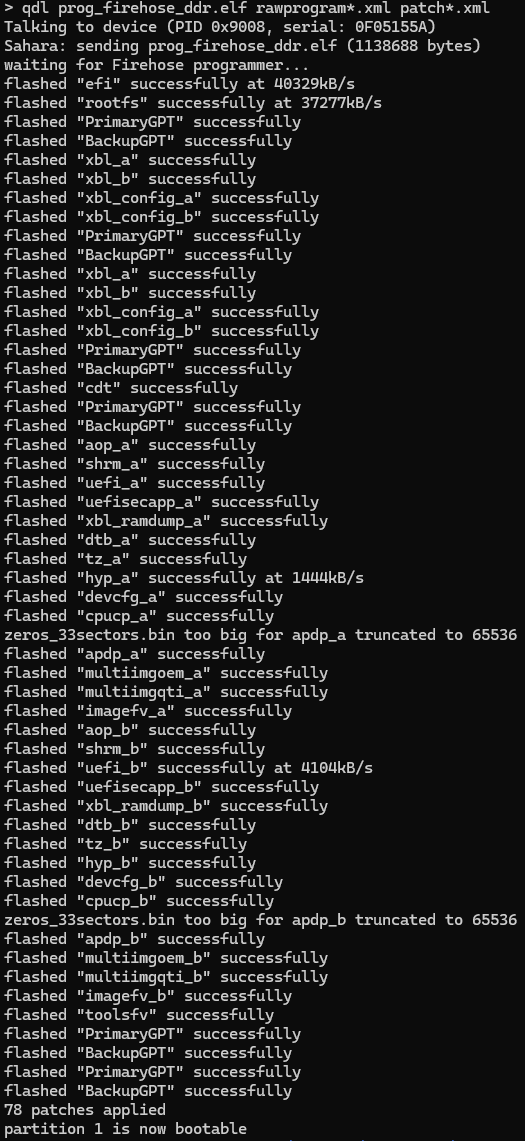
Flash EMMC All Images
qdl --storage emmc prog_firehose_ddr.elf rawprogram*.xml patch*.xml
IQ9075
IQ9075 Platform Flashing Guide
Flash UFS provision (Once only)
qdl prog_firehose_ddr.elf provision_1_2.xml

Flash Safety Island
- Enter sail_nor folder
cd sail_nor
- Flash sail_nor
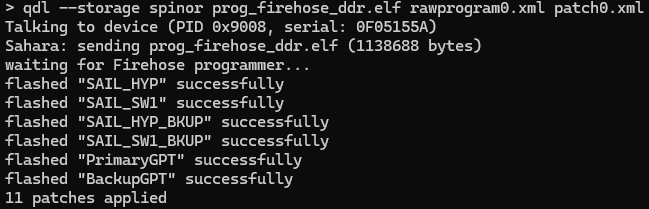
qdl --storage spinor prog_firehose_ddr.elf rawprogram0.xml patch0.xml
- Back to the root path
cd ..
Flash UFS All Images
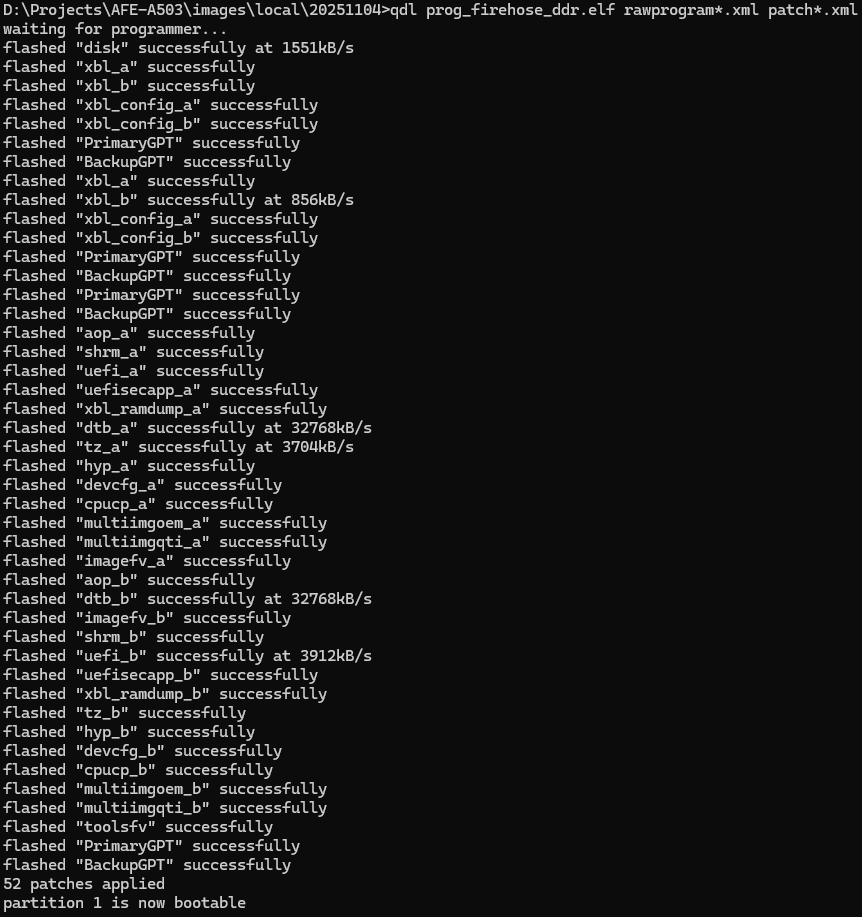
qdl prog_firehose_ddr.elf rawprogram*.xml patch*.xml
Switch device to Normal Mode and power on device
Customization
Setting up SDK
Not support now
Setting up cross compiling environment
Not support now