AOM-3841 AUDIO MIC1/OUT1 & MIC2/OUT2
Contents
- 1AOM-3841 supports three kinds of sound cards:
- 2AUDIO MIC1/OUT1(Compatible with ROM-EG57)
- 3AUDIO MIC2/OUT2(Compatible with ROM-EG57)
- 4Audio Test
- 5Get sound card ID
- 6Record
- 7Playback.
- 8RKTool指令:
AOM-3841 supports three kinds of sound cards:
“1 rt5640-codec”(9696EG57001) “2 hdmi”, “3 dp0
Set the default audio output when playing media files. 1. Click “Applications” ->”Multimedia”->”PulseAudio Volume Control”. 2. Select “Build-in Audio stereo” for rt5640-codec output, or select “HDMI” for HDMI output, or select “Build-in Audio Display Port 1 Stereo” for DP output.
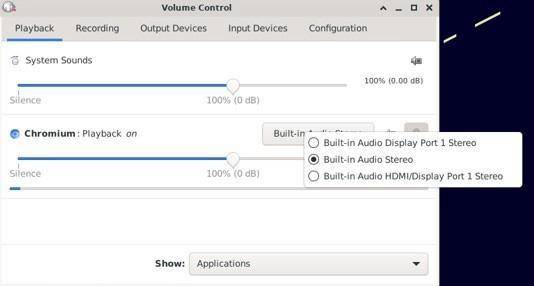
Mute and Volume Control Mute and volume can be configured by GUI.

AUDIO MIC1/OUT1(Compatible with ROM-EG57)
HW Pin Header
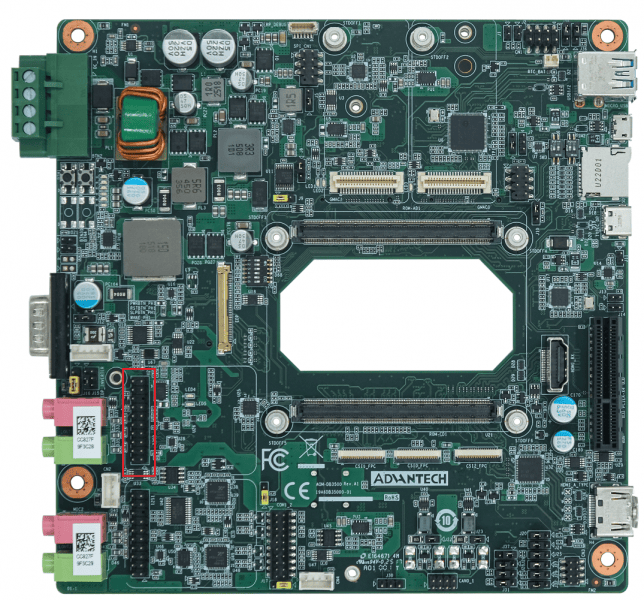
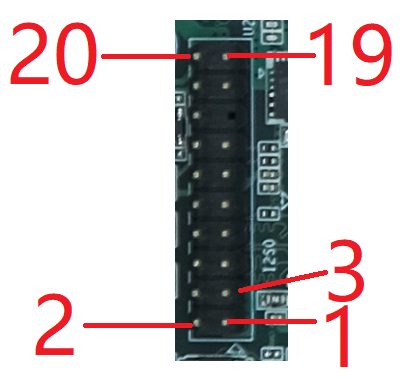
| I2S0 Connector Pin Definition |
|---|
| Pin |
| 1 |
| 2 |
| 3 |
| 4 |
| 5 |
| 6 |
| 7 |
| 8 |
| 9 |
| 10 |
| 11 |
| 12 |
| 13 |
| 14 |
| 15 |
| 16 |
| 17 |
| 18 |
| 19 |
| 20 |
AUDIO MIC2/OUT2(Compatible with ROM-EG57)
HW Pin Header
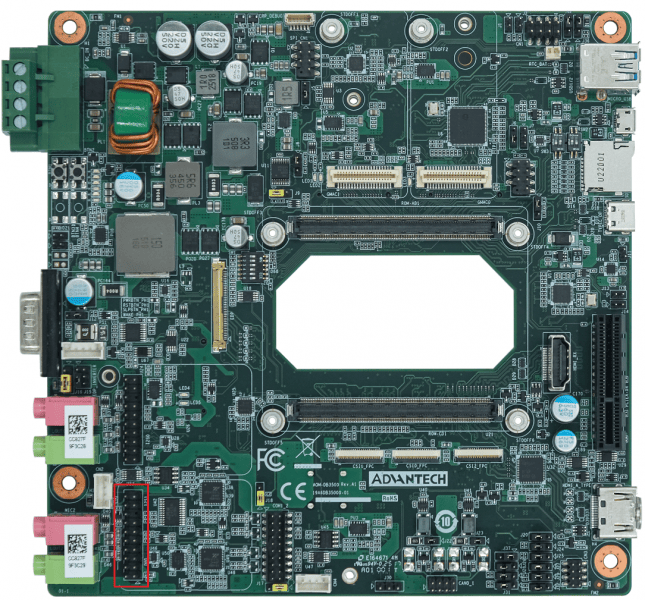
| I2S1 Connector Pin Definition |
|---|
| Pin |
| 1 |
| 2 |
| 3 |
| 4 |
| 5 |
| 6 |
| 7 |
| 8 |
| 9 |
| 10 |
| 11 |
| 12 |
| 13 |
| 14 |
| 15 |
| 16 |
| 17 |
| 18 |
| 19 |
| 20 |
Audio Test
Get sound card ID
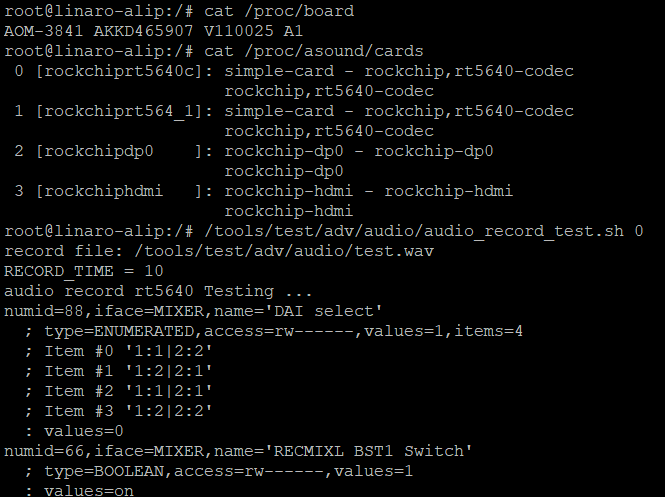
# cat /proc/asound/cards
0 [rockchiprt5640c]: simple-card - rockchip,rt5640-codec
 rockchip,rt5640-codec
1 [rockchipdp0 ]: rockchip-dp0 - rockchip-dp0
 rockchip-dp0
2 [rockchiphdmi ]: rockchip-hdmi - rockchip-hdmi
 rockchip-hdmi
Record
Take Card ID 0 for example:
# CARD_ID=0
# arecord -c 2 -Dplughw:$CARD_ID,0 -f S16_LE -r 16000 -d 10 -t wav
test.wav
Playback.
Take Card ID 0 for example:
# CARD_ID=0
# arecord -c 2 -Dplughw:$CARD_ID,0 -f S16_LE -r 16000 -d 10 -t wav
test.wav
See details of the usage of “aplay”:
# aplay --help
… …
-D, --device=NAME select PCM by name
-t, --file-type TYPE file type (voc, wav, raw or au)
… …
RKTool指令:
# cat /proc/asound/cards
# /tools/test/adv/audio/audio_record_test.sh 0
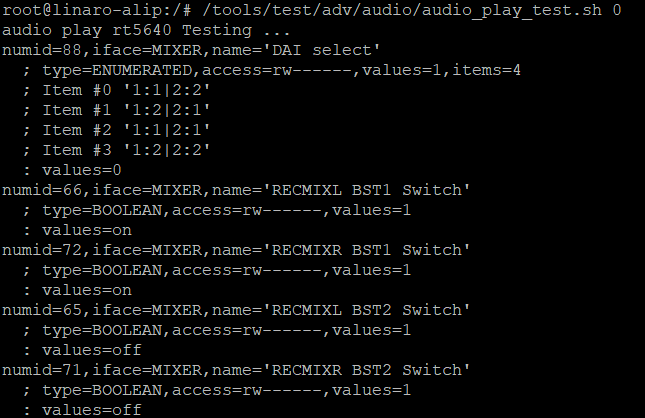
# /tools/test/adv/audio/audio_play_test.sh 0