Using RKTool for ASR-A501.
Contents
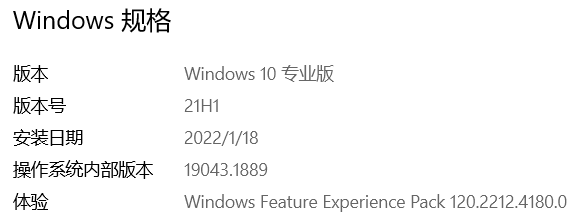
- 1For example, the PC used is a laptop. The specifications are as follows:
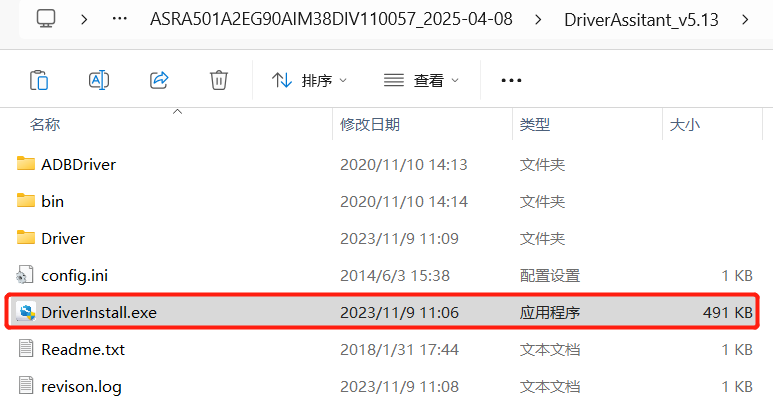
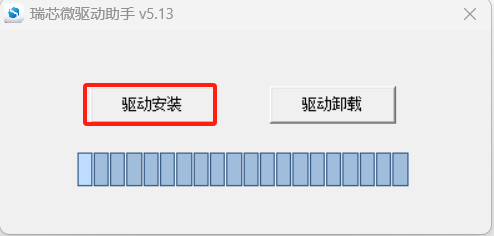
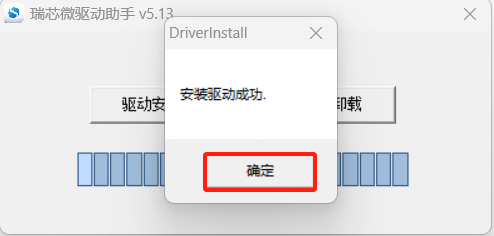
- 2Open the following file, follow the steps and double-click to install the DriverInstall program, as shown in the figure below:
- 3Go to the RKDevTool_Release folder and run the RKDevTool.exe program.
- 4The test environment is set up as follows:
- 5Open the putty tool, enter the MASKROM mode through the debug port, then click "Execute" to start burning the OS.
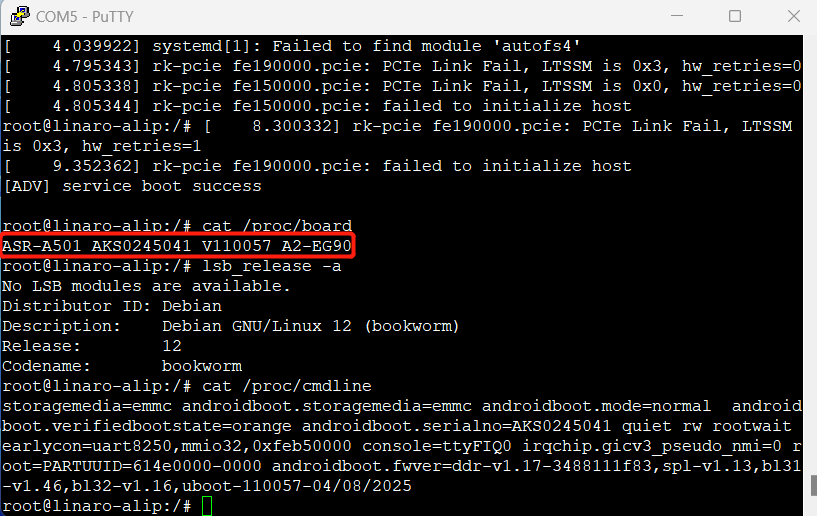
- 6After burning, open putty to check the image version.
For example, the PC used is a laptop. The specifications are as follows:
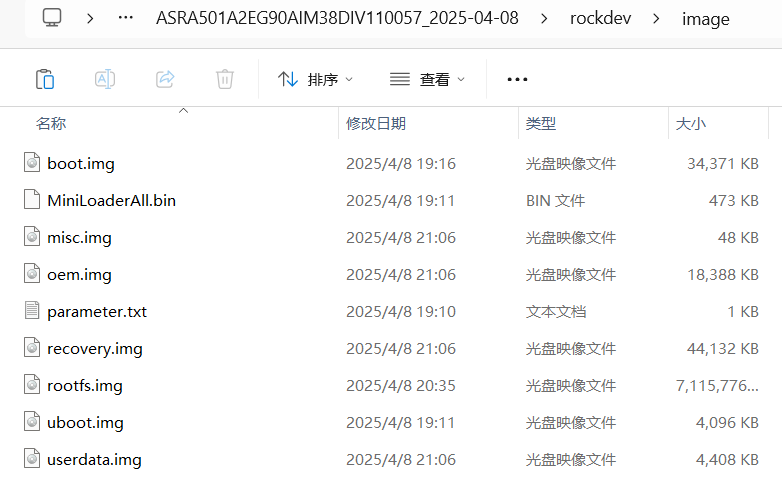
Decompress the downloaded image on the PC.
Open the following file, follow the steps and double-click to install the DriverInstall program, as shown in the figure below:
Change Tool language in config.ini, please change "Selected: to "2"
选择工具语言:Selected=1(中文)<--Chinese ;Selected=2(英文)<-- English [Language] Kinds=2 Selected=2 LangPath=Language\
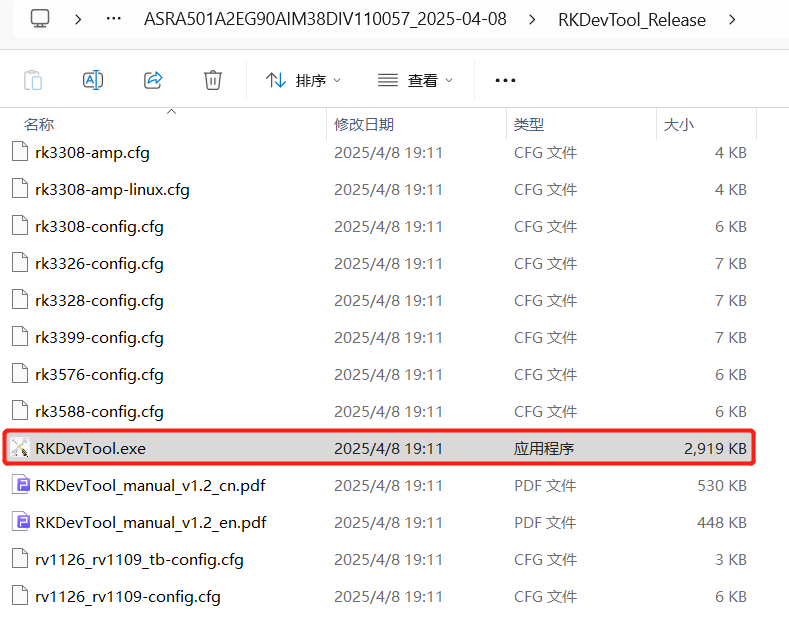
Go to the RKDevTool_Release folder and run the RKDevTool.exe program.
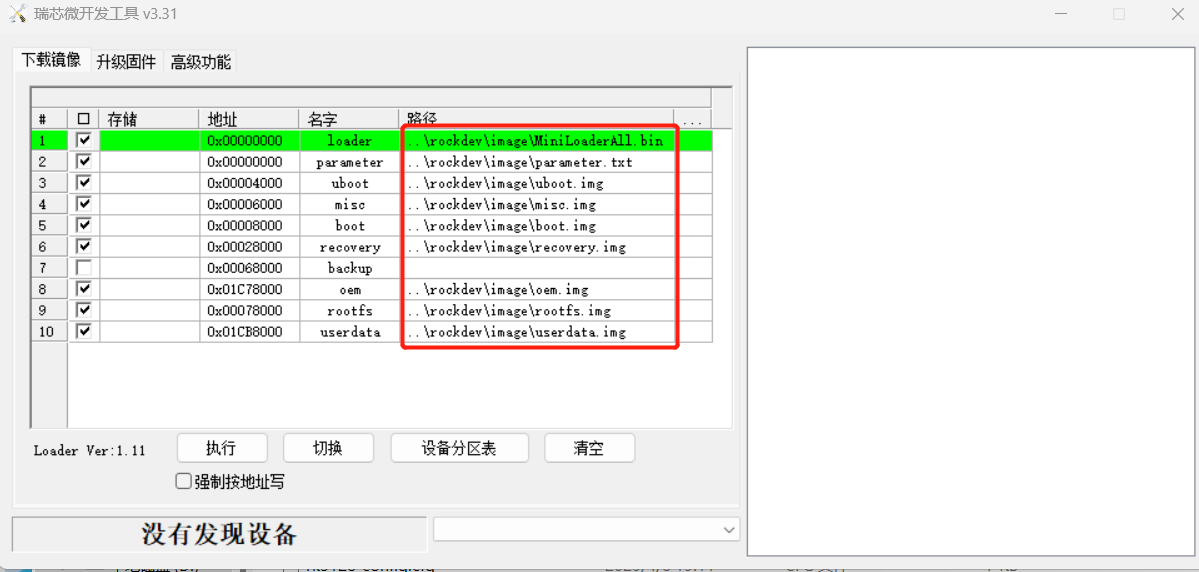
Note: Please ensure that the path for burning the file is correct.
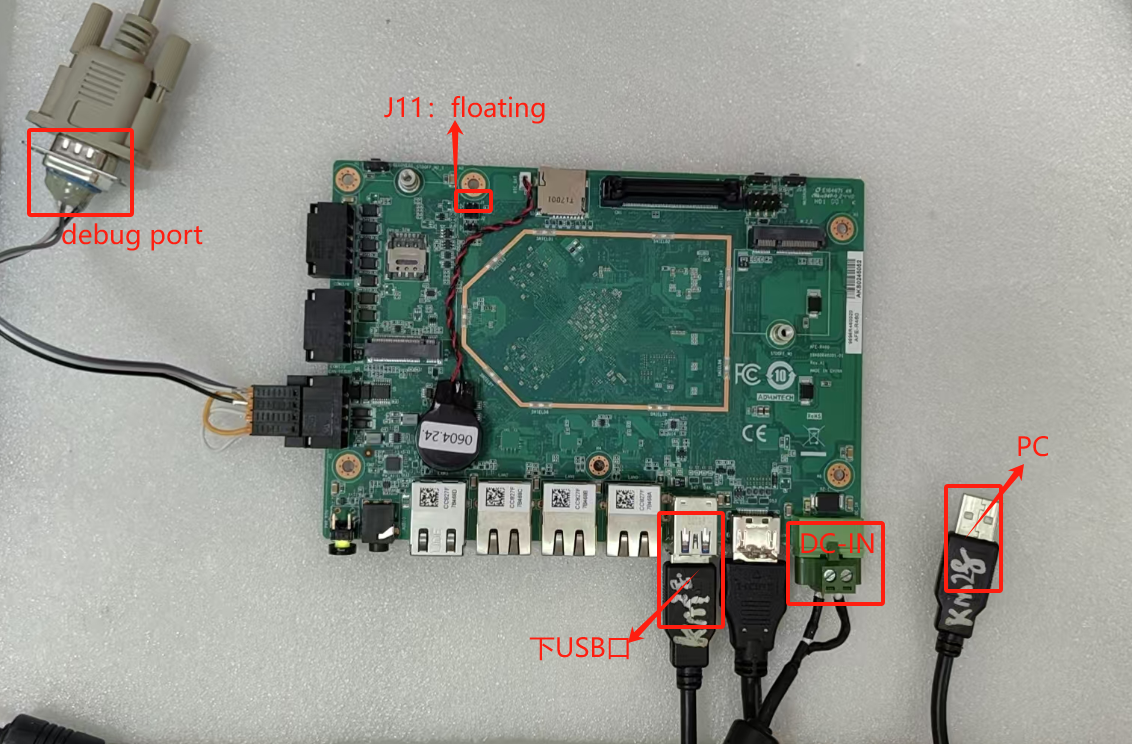
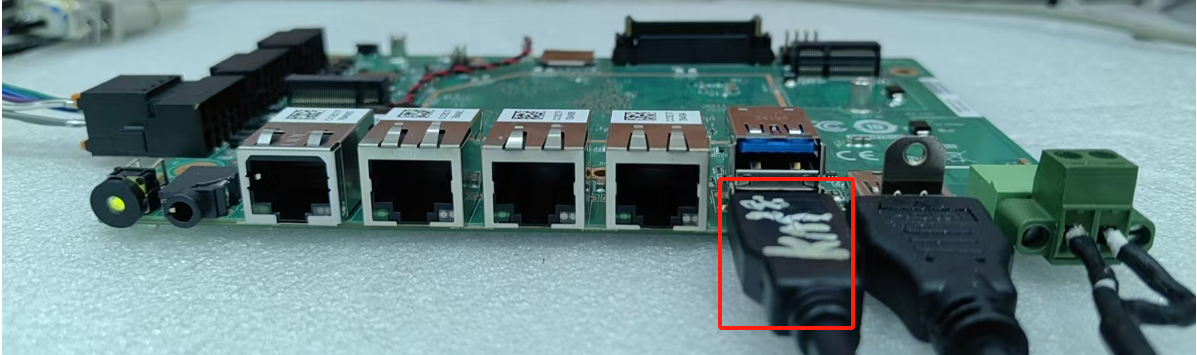
The test environment is set up as follows:
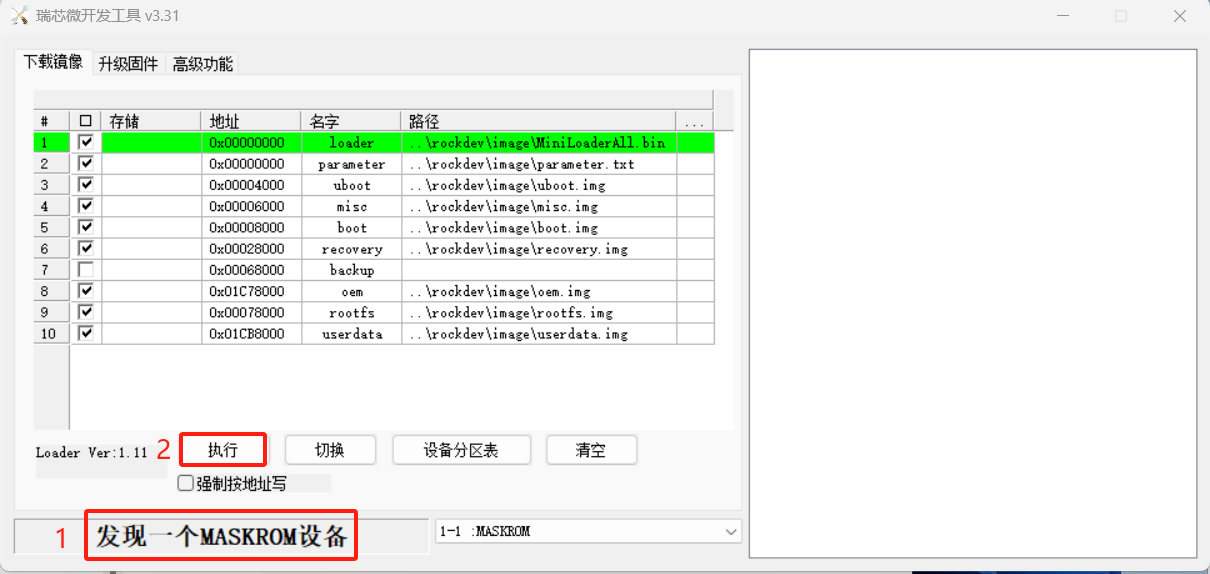
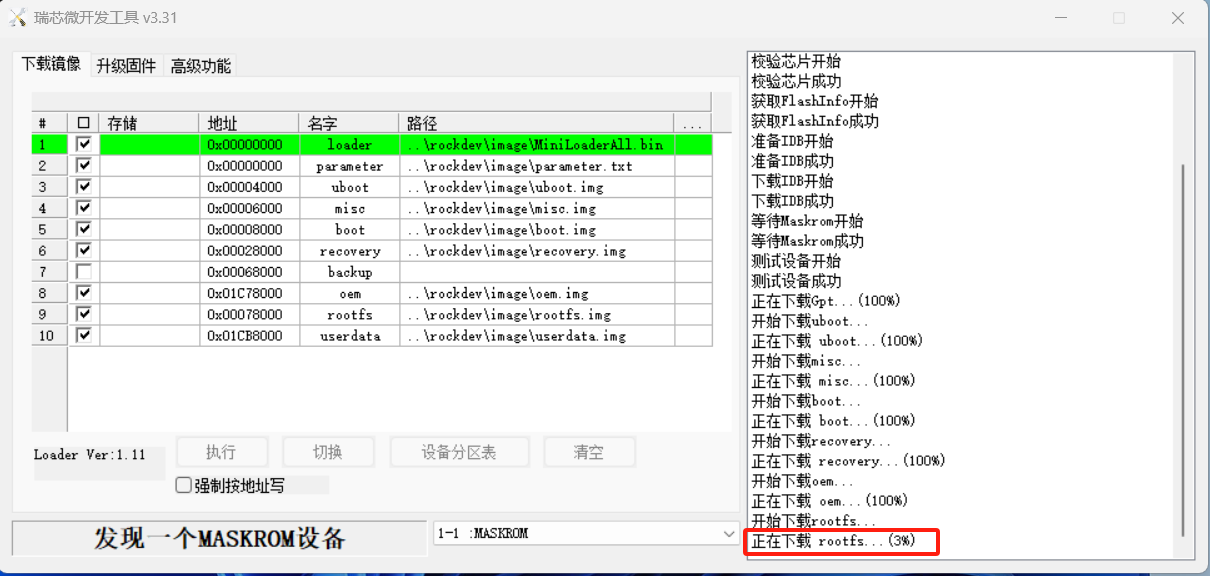
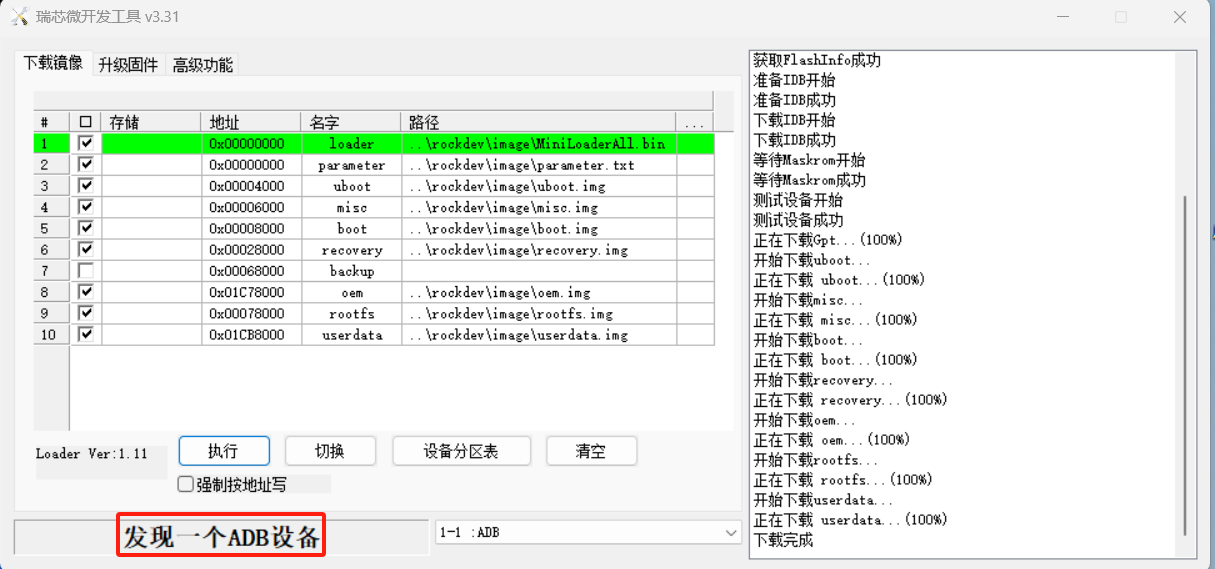
Open the putty tool, enter the MASKROM mode through the debug port, then click "Execute" to start burning the OS.
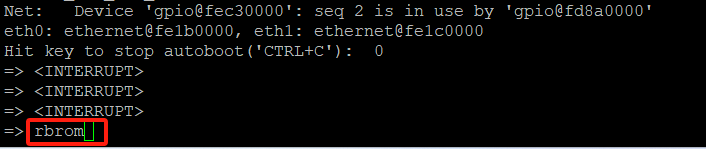
Method 1: After powering on and starting up, press "Ctrl+C" to enter "u-boot", input the "rbrom" command, and enter the MASKROM mode.
Debian :
Hit any key to stop autoboot: 0
rkboot # <INTERRUPT>
rkboot # rbrom
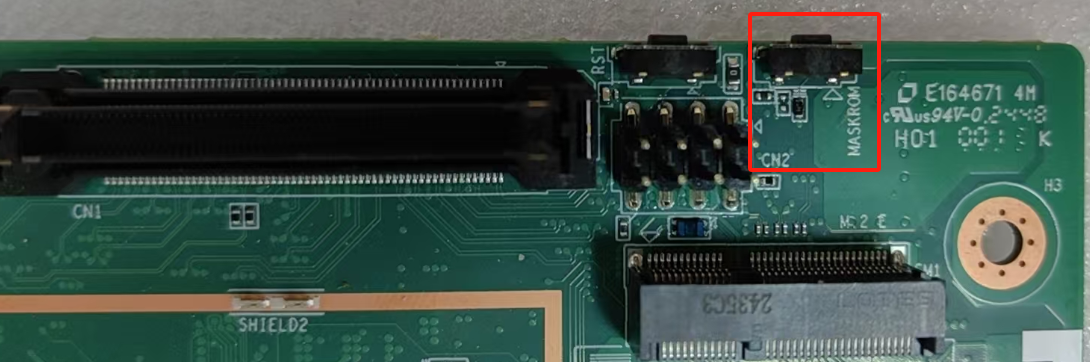
Method Two: Press the "MASKROM" button, then power on and turn on the device, and it will directly enter the MASKROM mode.
After burning, open putty to check the image version.